We'll Cover:
Setting up Integration
Step 1: From the dashboard, navigate to "Integration" and select it. Then, click "Add Ecommerce App".
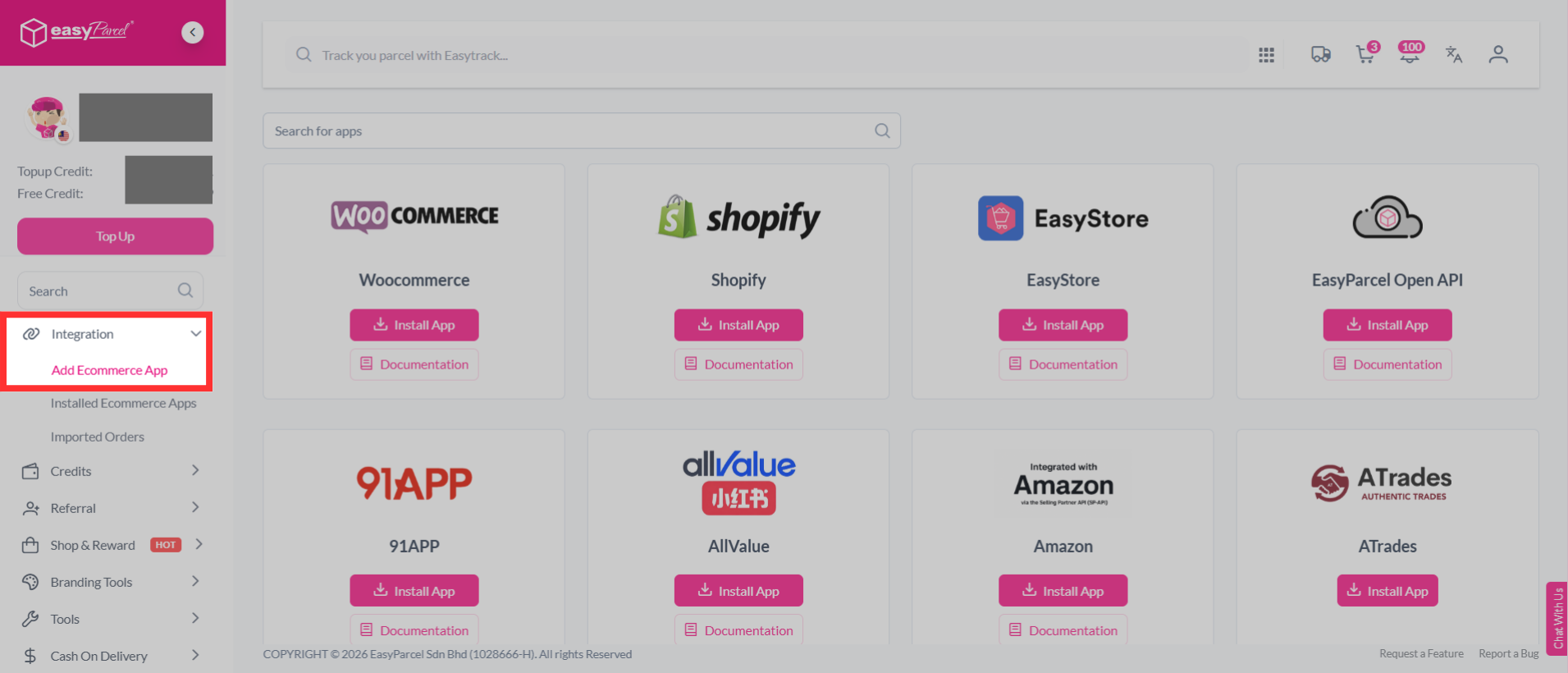
Step 2: Find "EasyStore" from the list, and click "Install App".
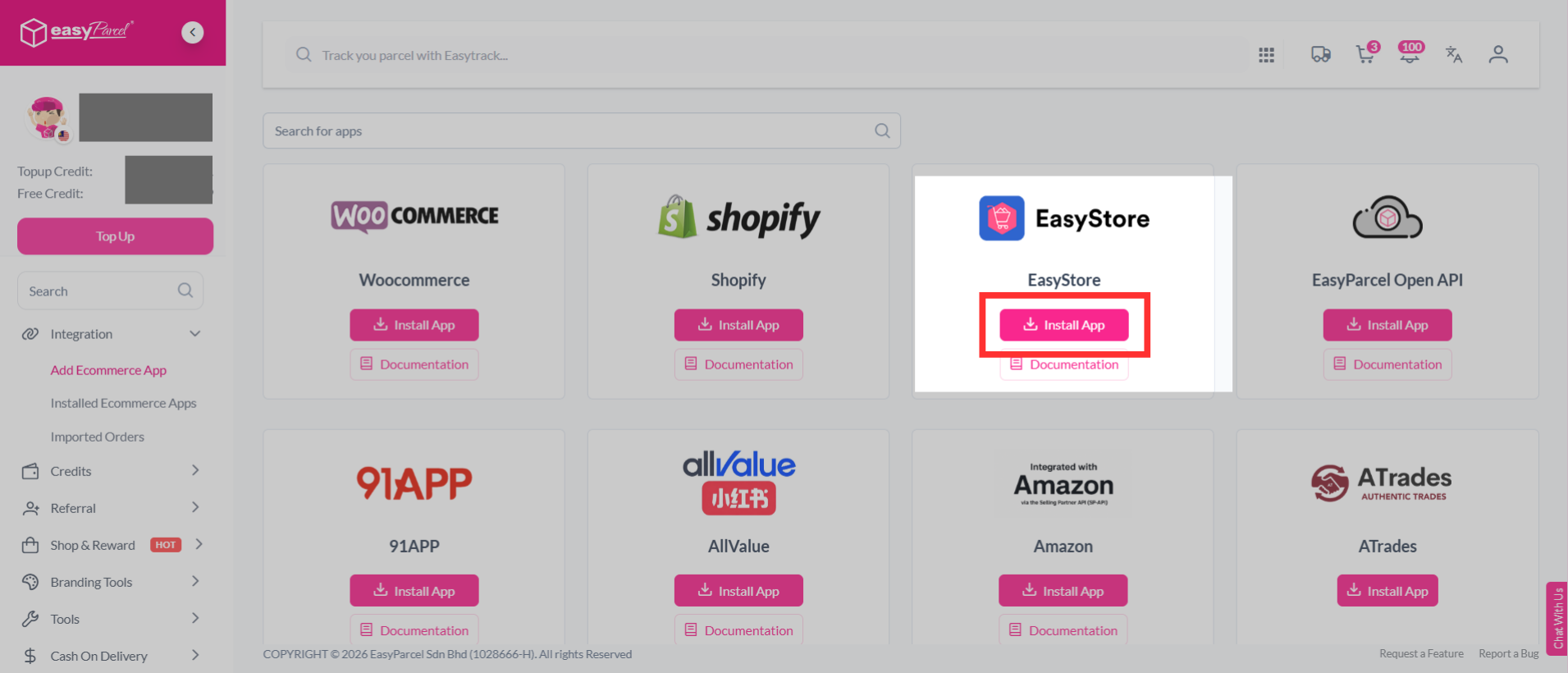
Step 3: EasyStore will ask for permission to connect with EasyParcel. Review the requested permissions, then click "Allow Access" to continue.
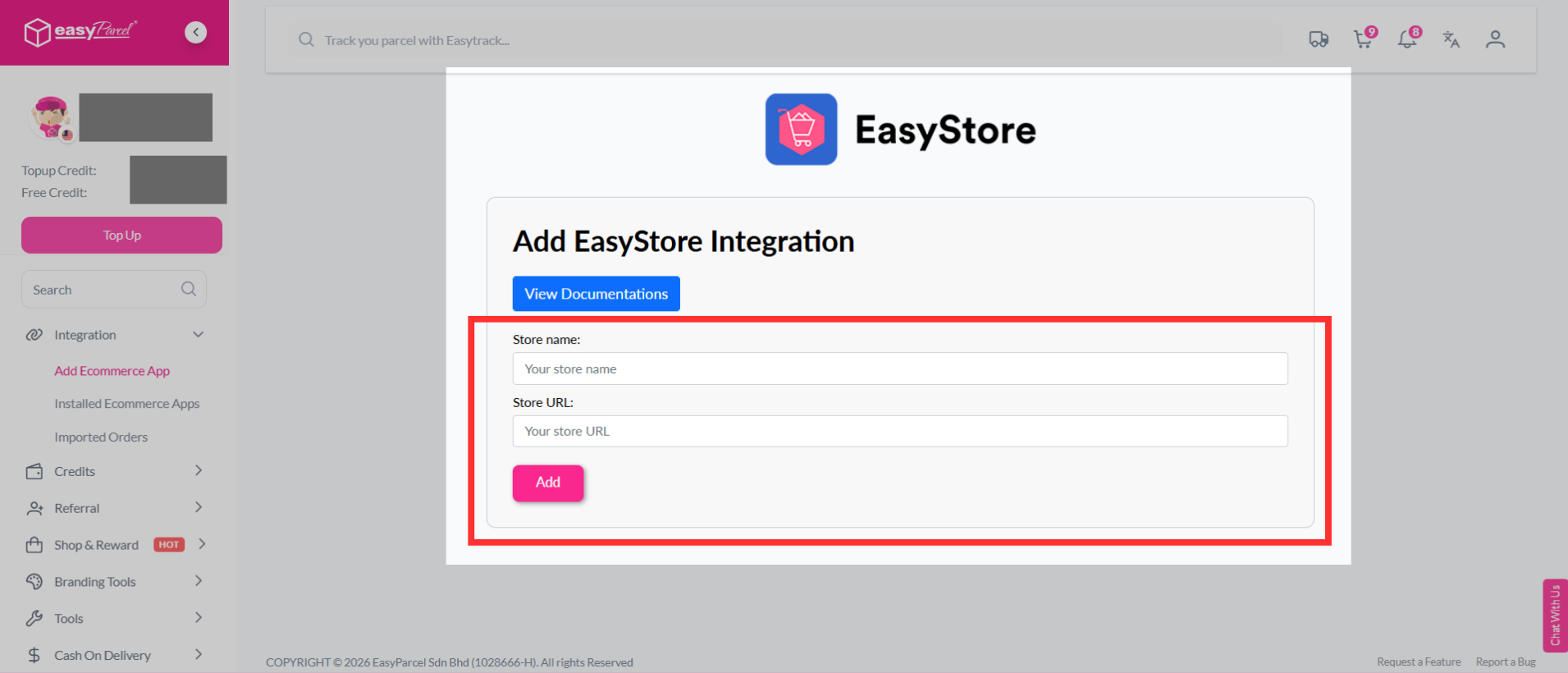
Step 4: Fill in your store’s name and store URL, then click "Add" to continue.
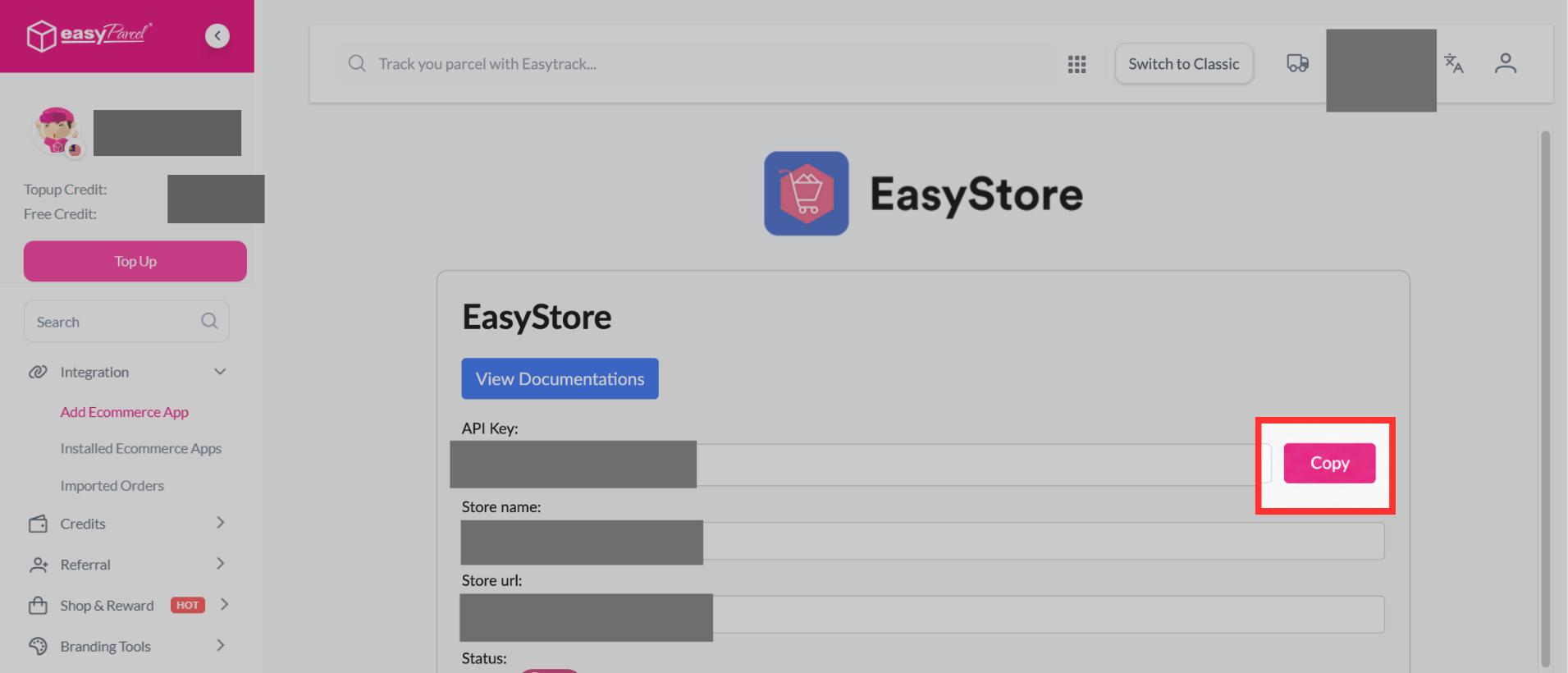
Step 5: EasyParcel will generate a unique Integration ID (API Key) for your store. Copy the Integration ID, as you will need to paste it into the EasyStore app.
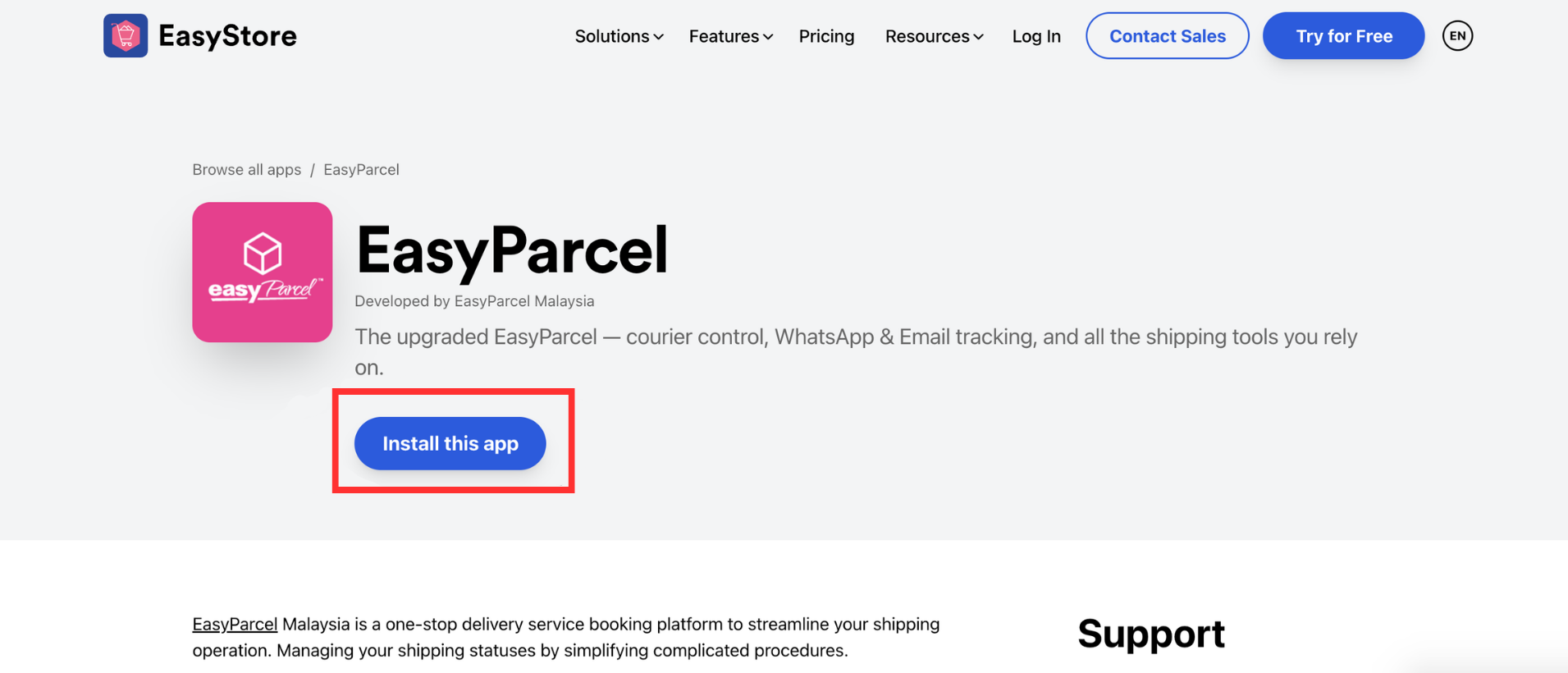
Step 6: Click here to go directly to the EasyParcel Malaysia app page on EasyStore, then click "Install this app" to proceed with the installation.
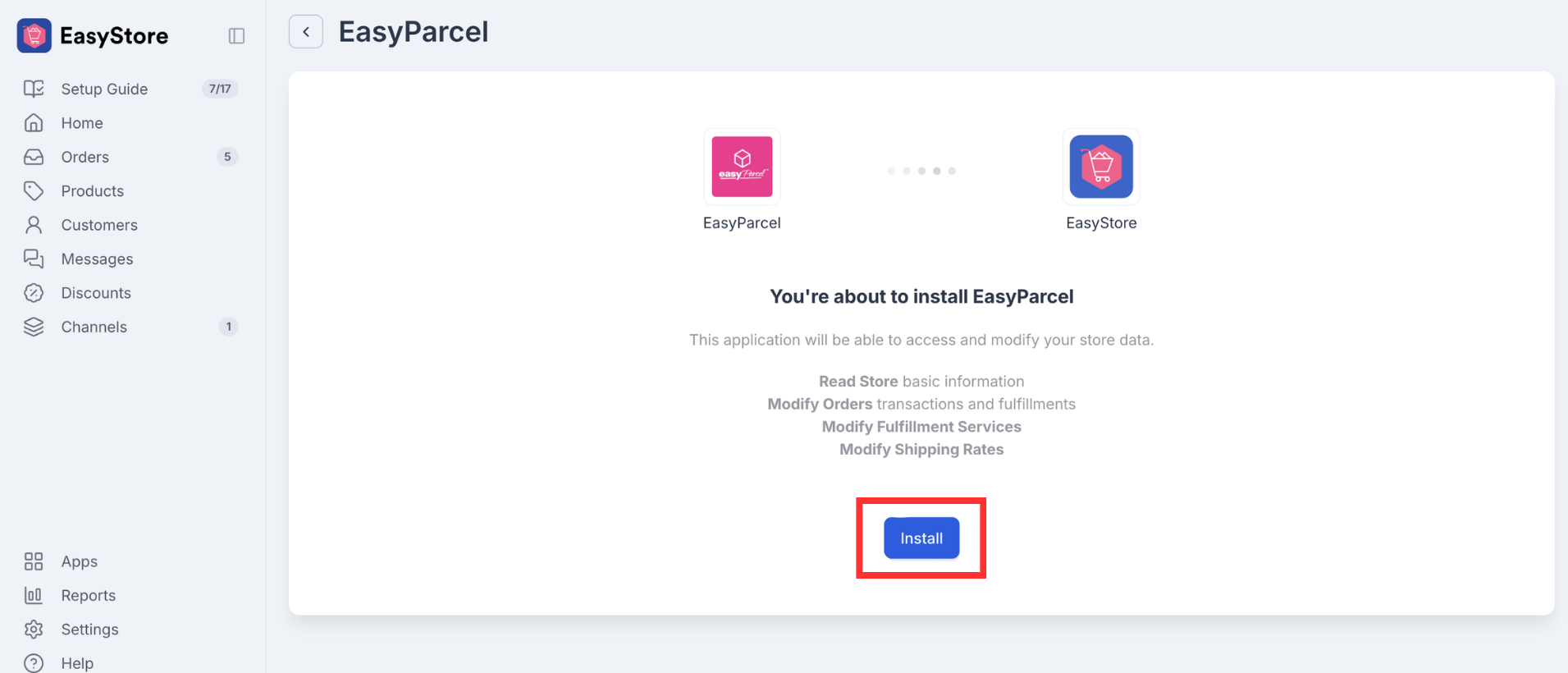
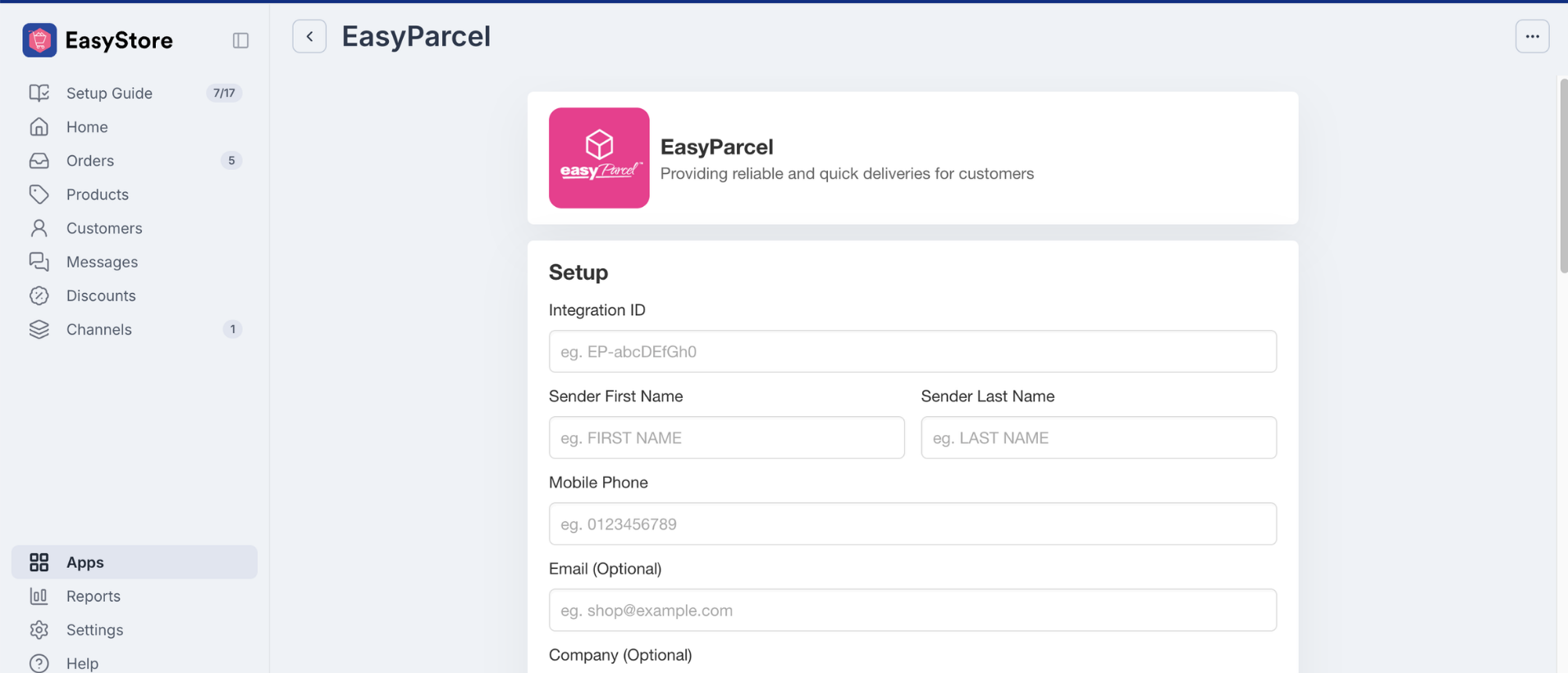
Step 7: EasyStore will display a permission screen showing the information that the app requires access to, such as orders, fulfillments, shipping, and locations. Review the permissions, then click "Install" to authorize the EasyParcel app.
Step 8: After authorization, you will be redirected to its Settings page. Complete all the required sections, including your Integration ID, sender details, and pickup location. Once completed, the app will be ready to use.
How To Fulfill Order from EasyStore
Step 1: Go to your EasyStore admin dashboard and click "Orders". Then, select and open the order you want to fulfill.
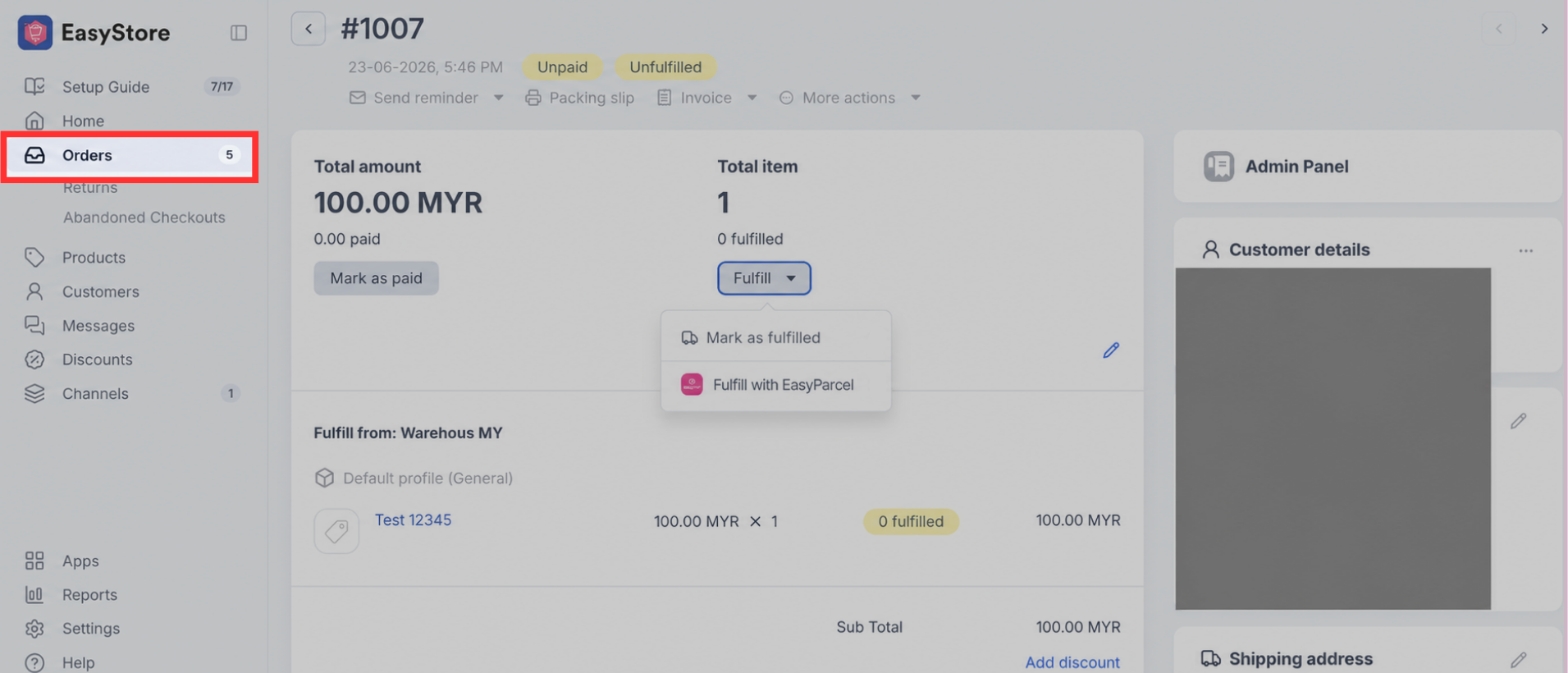
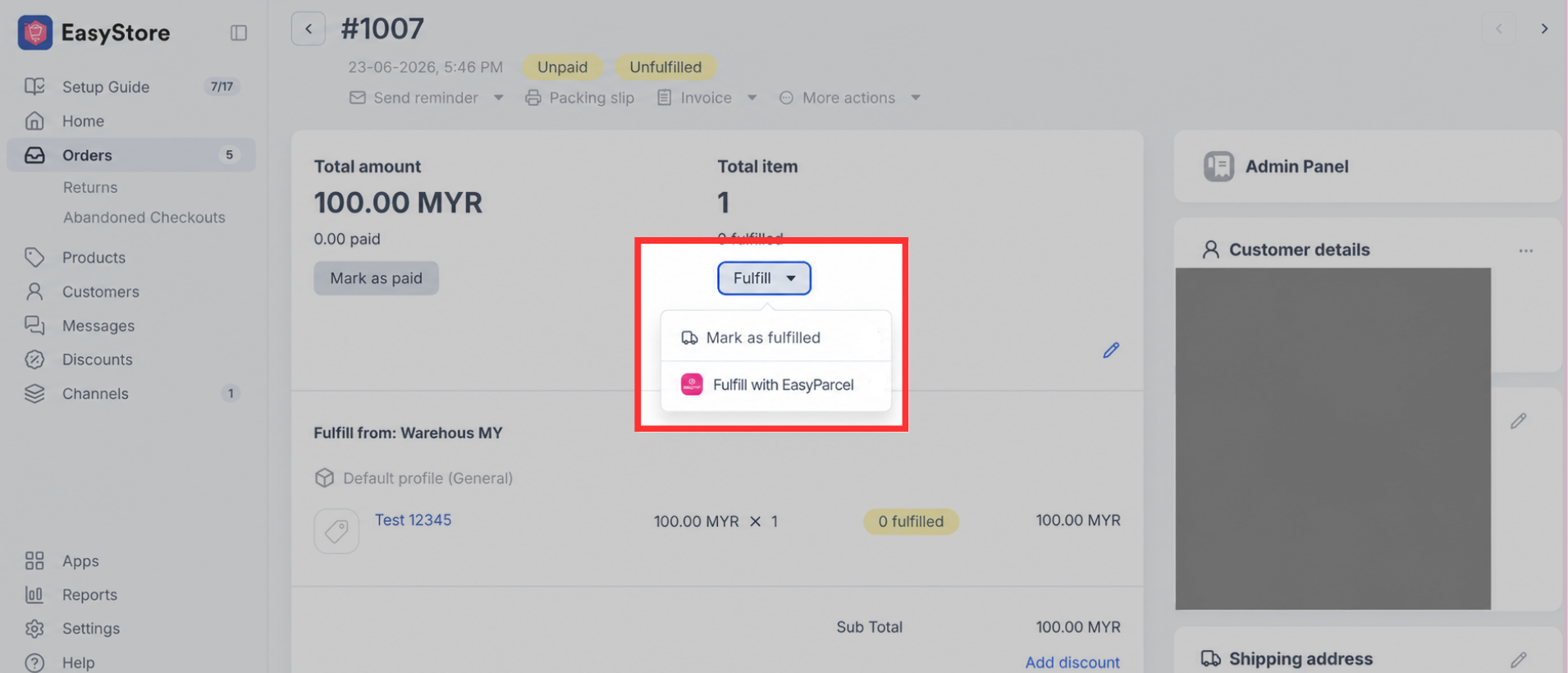
Step 2: Click "Fulfill", then select "Fulfill with EasyParcel" to proceed with the shipment.
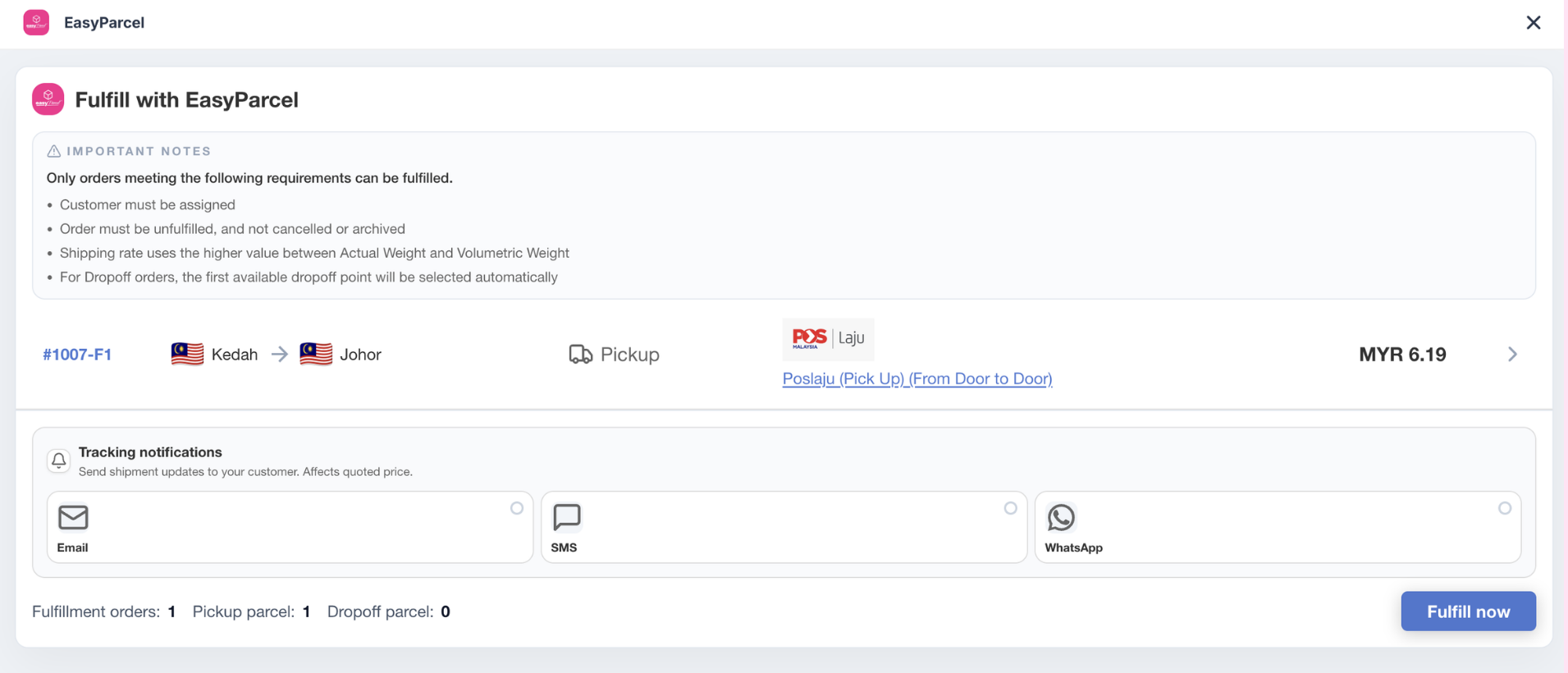
Step 3: You will be redirected to the EasyParcel fulfillment page within your EasyStore admin dashboard.
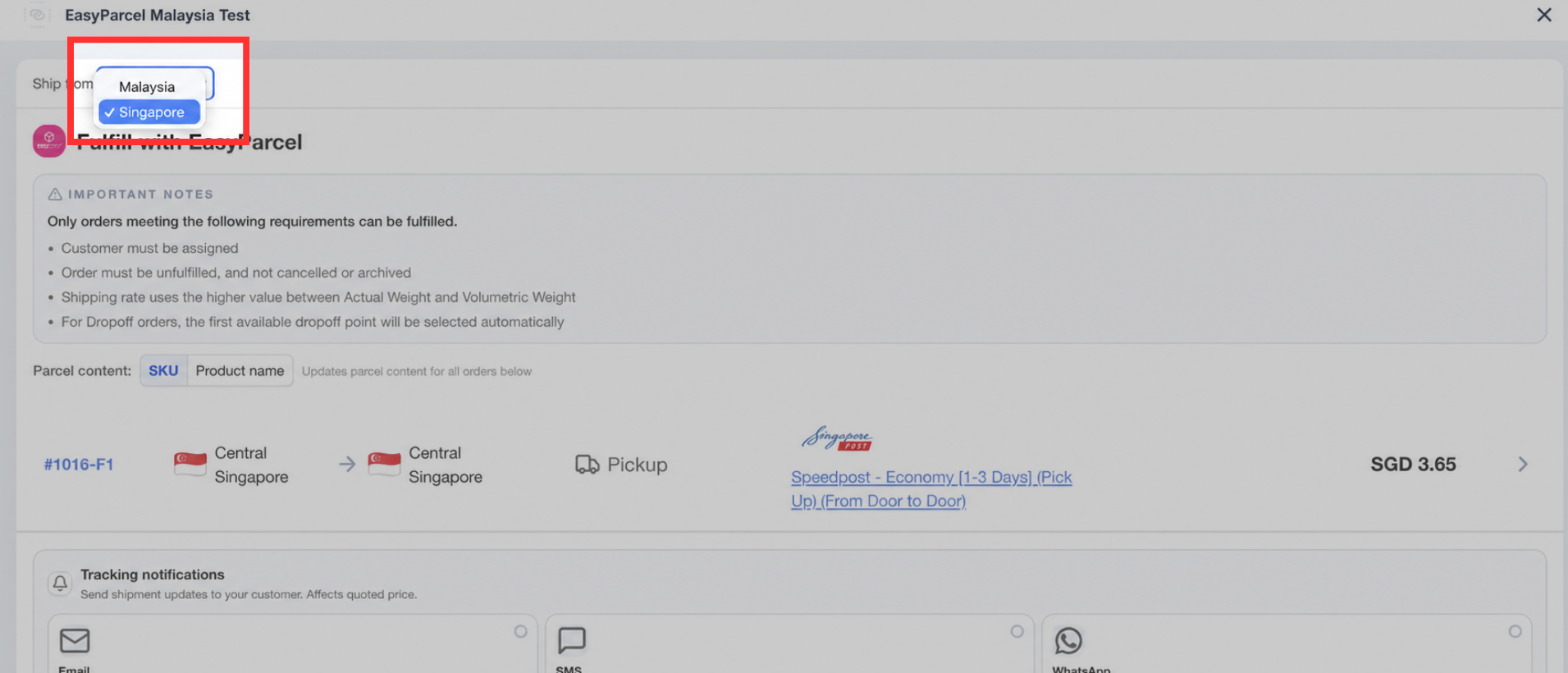
Step 4: If your store has more than one region, a "Ship from" option will appear. The region that matches the order’s pickup location will be selected automatically. If no matching region is found, your default region will be selected. You may use the "Ship from" dropdown to select a different EasyParcel account or region for the shipment.
Note: The "Ship from" option is only available for multi-region stores.
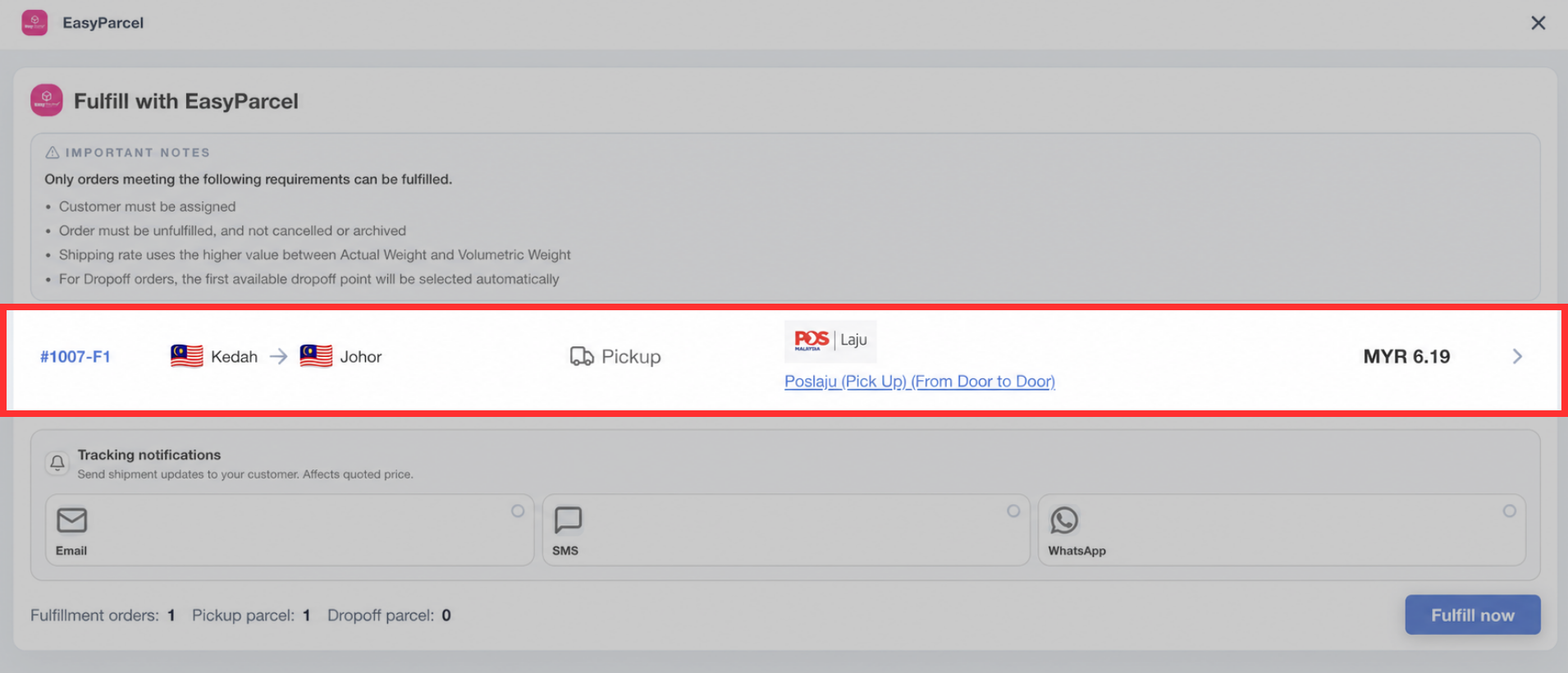
Step 5: Click the order you want to fulfill.
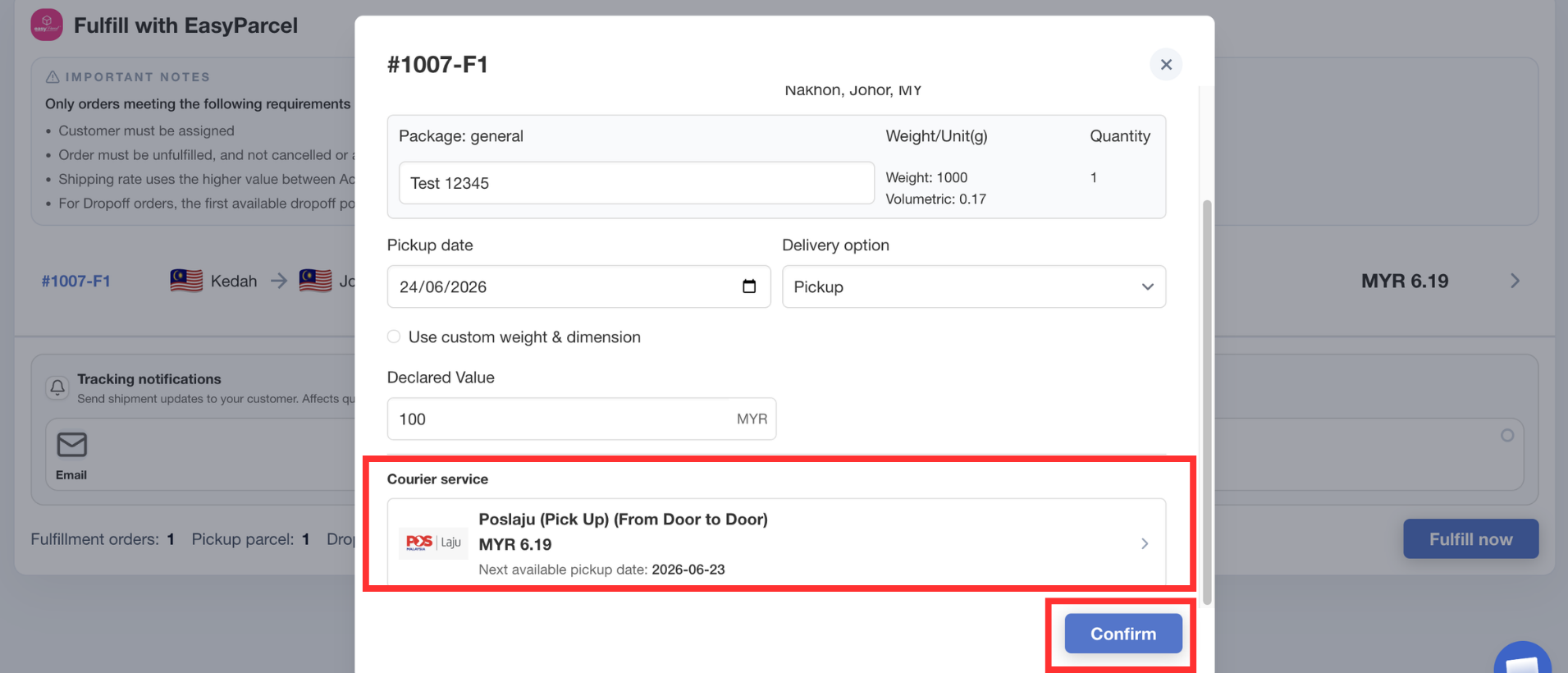
Step 6: Fill in the required details, then select your preferred courier rate by clicking the radio button next to it. A suitable courier option may be selected automatically based on your saved default courier, the courier selected by the customer at checkout, or the cheapest available rate. Then, click "Confirm".
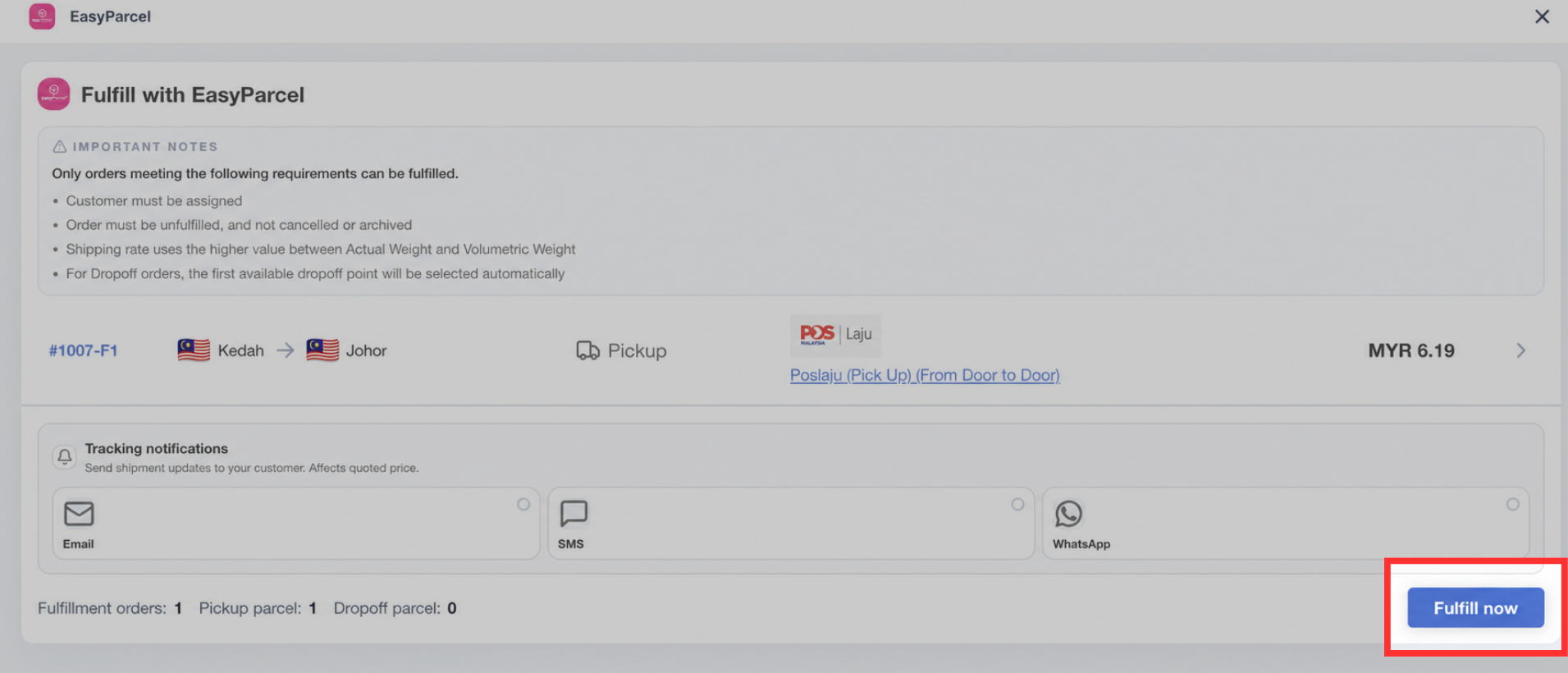
Step 7: Click "Fulfill now" to proceed. The app will automatically book the parcel with EasyParcel, make payment using your EasyParcel balance, and update the EasyStore order with the tracking number.
Step 8: Click "Confirm" to confirm the fulfillment and proceed with your shipment.
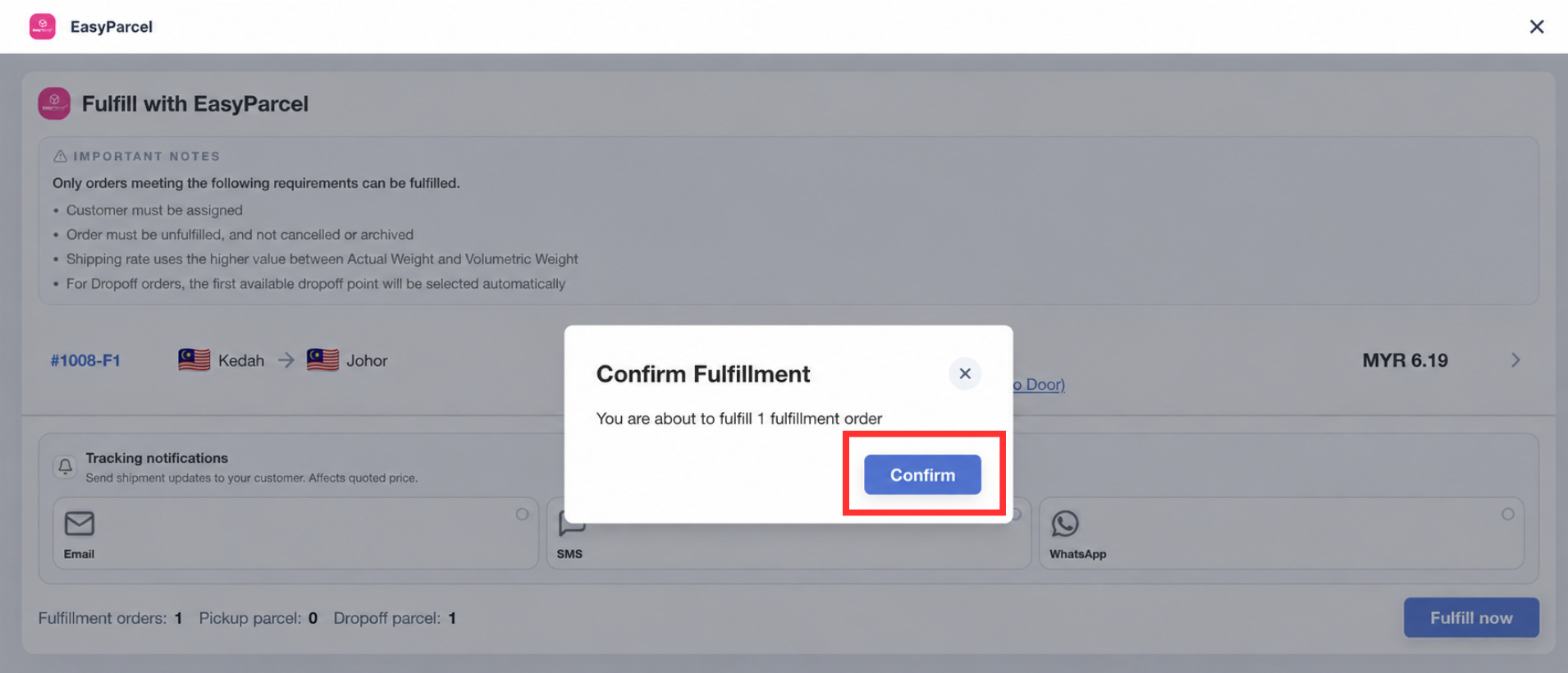
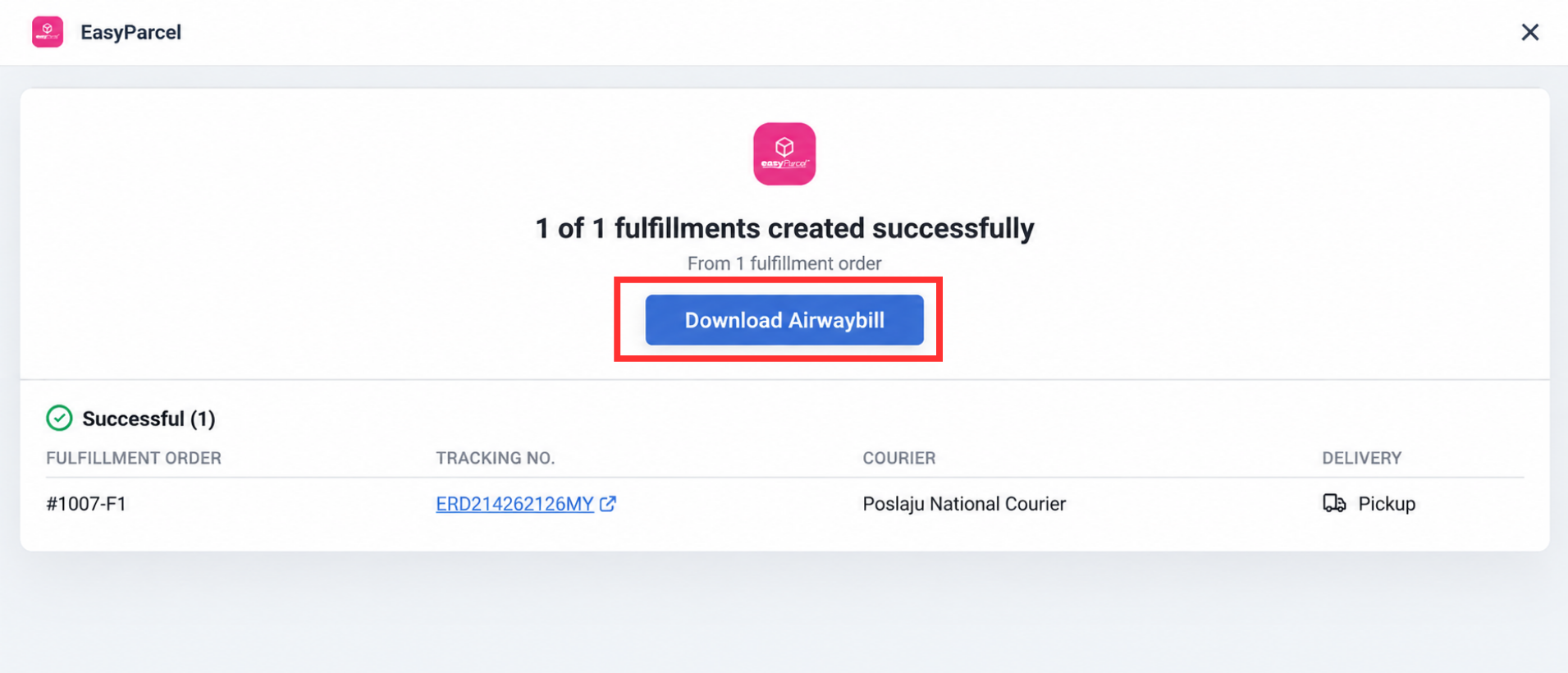
Step 9: Once your order has been successfully fulfilled, you will see:
- Fulfillment order
- Courier and Service Name
- Tracking URL – click the link to track your shipment
- "Download Air Waybill" button – click to download your Air Waybill (AWB)
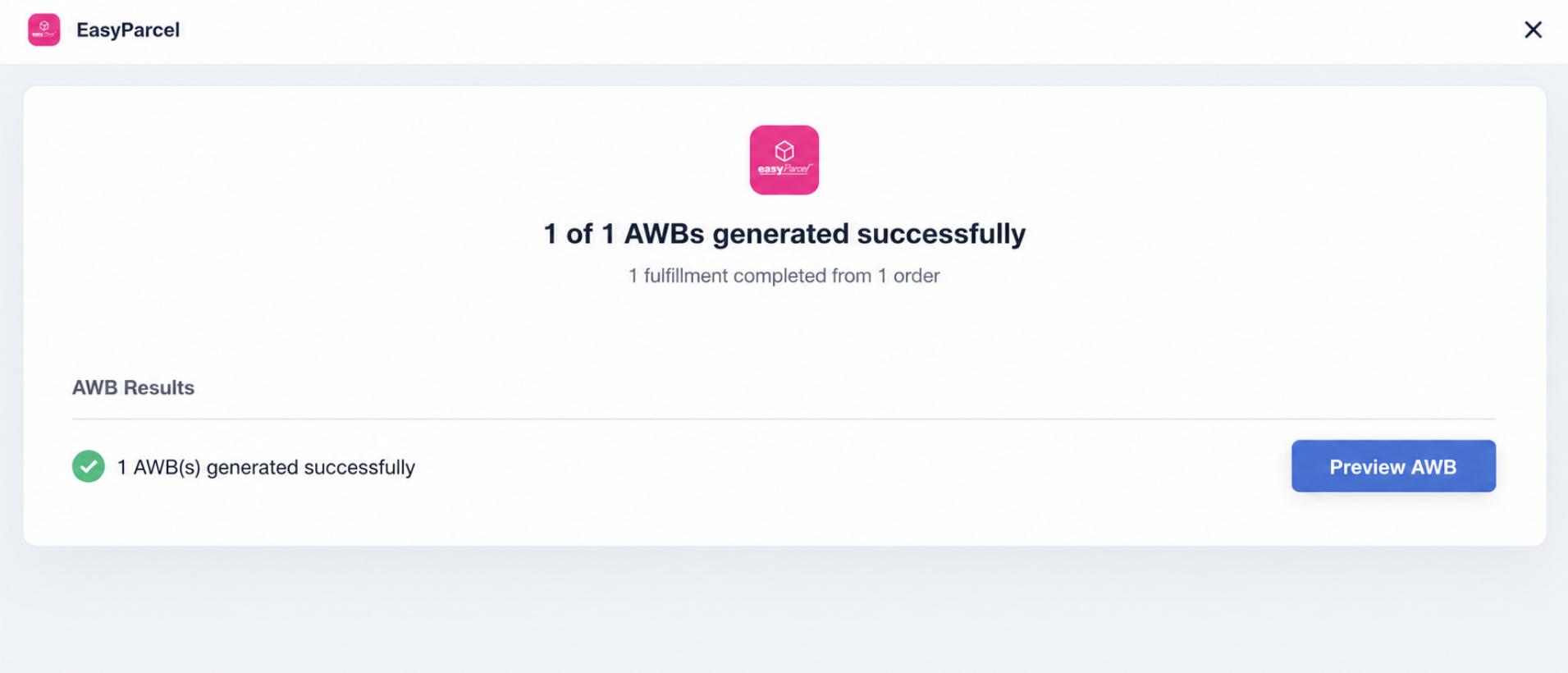
Step 10: After authorization, you will be redirected to its Settings page. Complete all the required sections, including your Integration ID, sender details, and pickup location. Once completed, the app will be ready to use.
How To Fulfilling Multiple Orders at Once (Bulk)
Step 1: Go to your EasyStore admin dashboard and click "Orders".
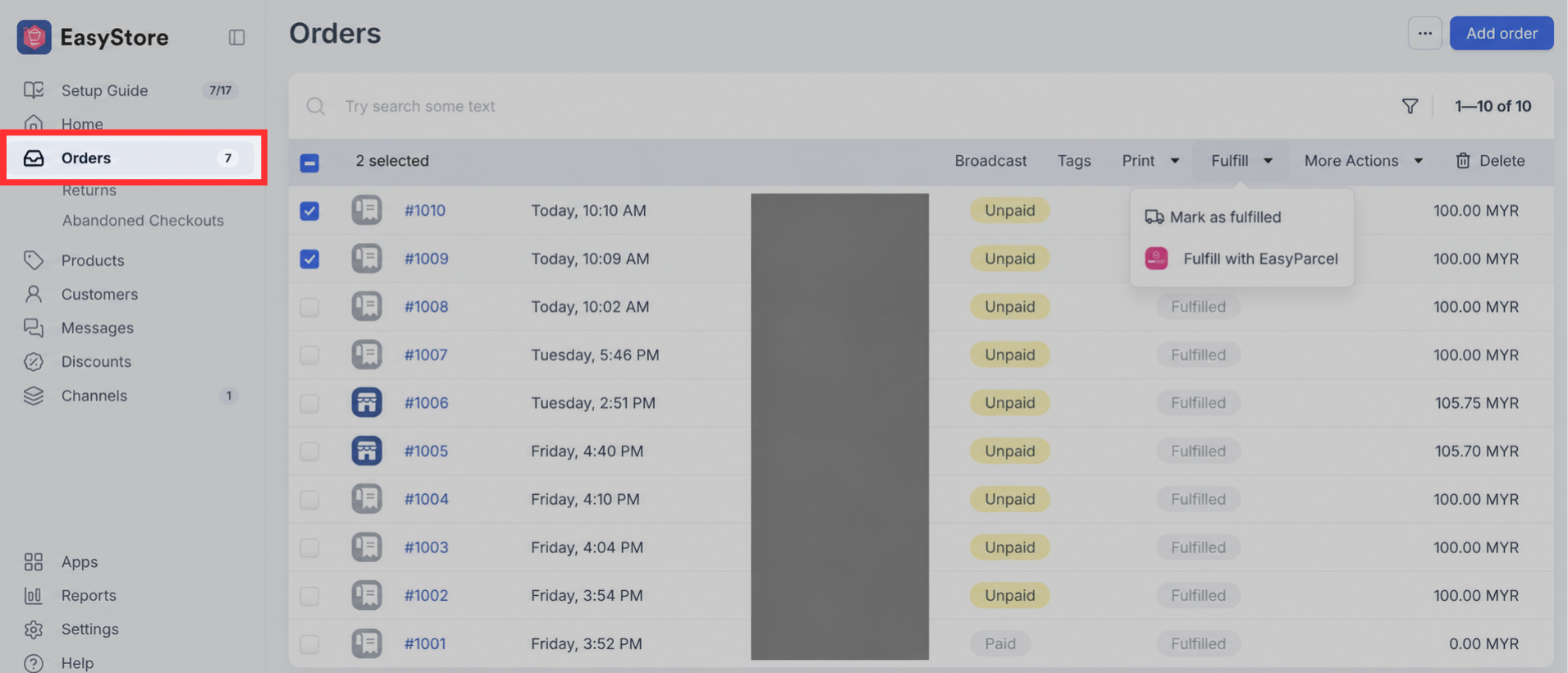
Step 2: Tick the checkboxes next to the orders you want to fulfill. Then, click "Fulfill" and select "Fulfill with EasyParcel".
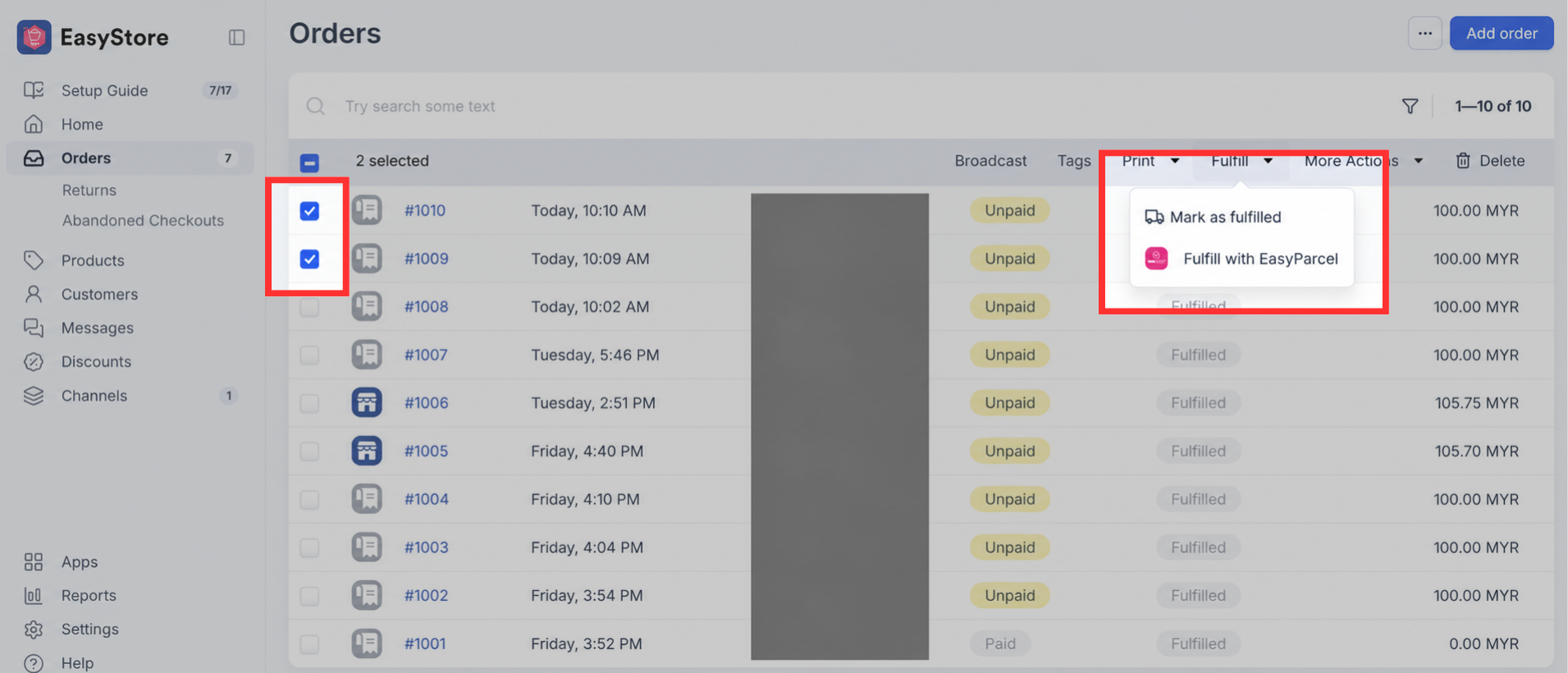
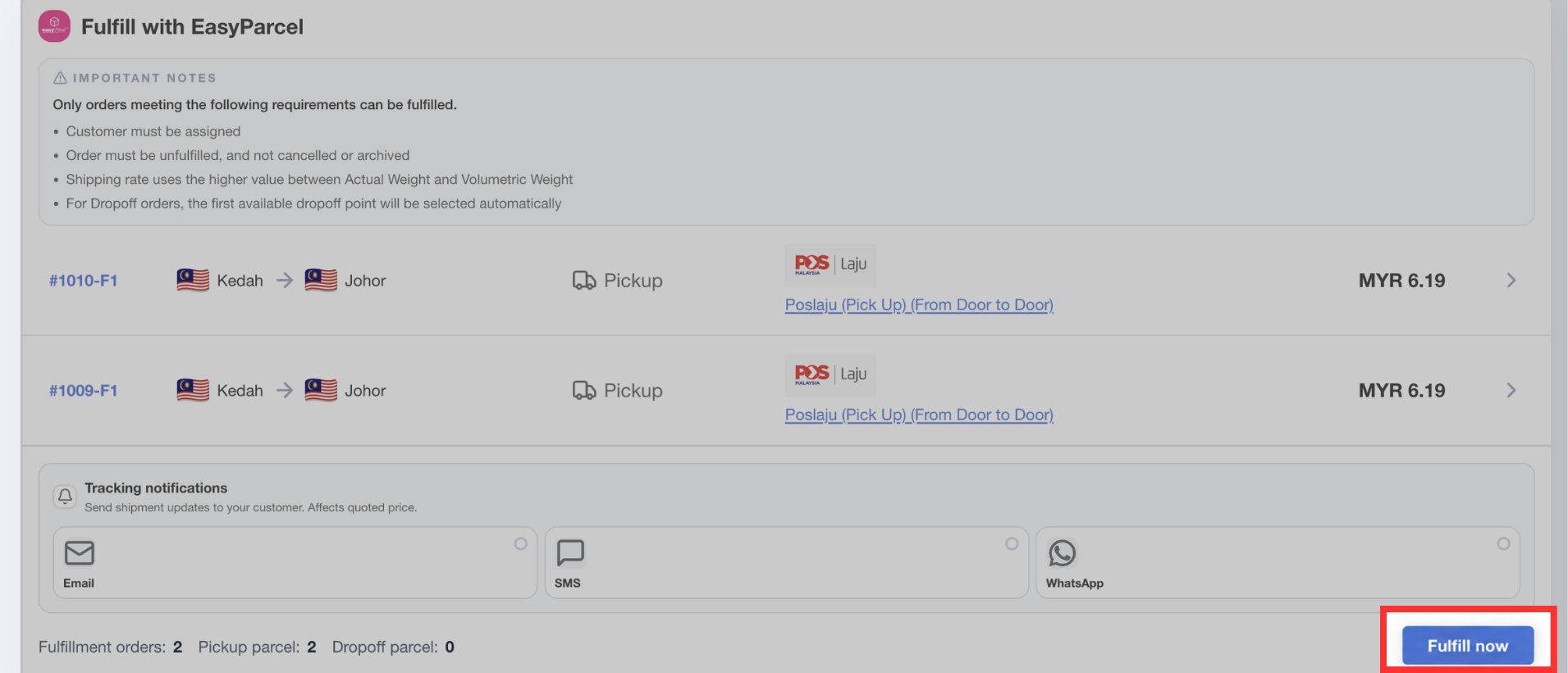
Step 3: EasyStore will open the bulk fulfillment page within your admin dashboard. Review the order details, then click "Fulfill now" to proceed.
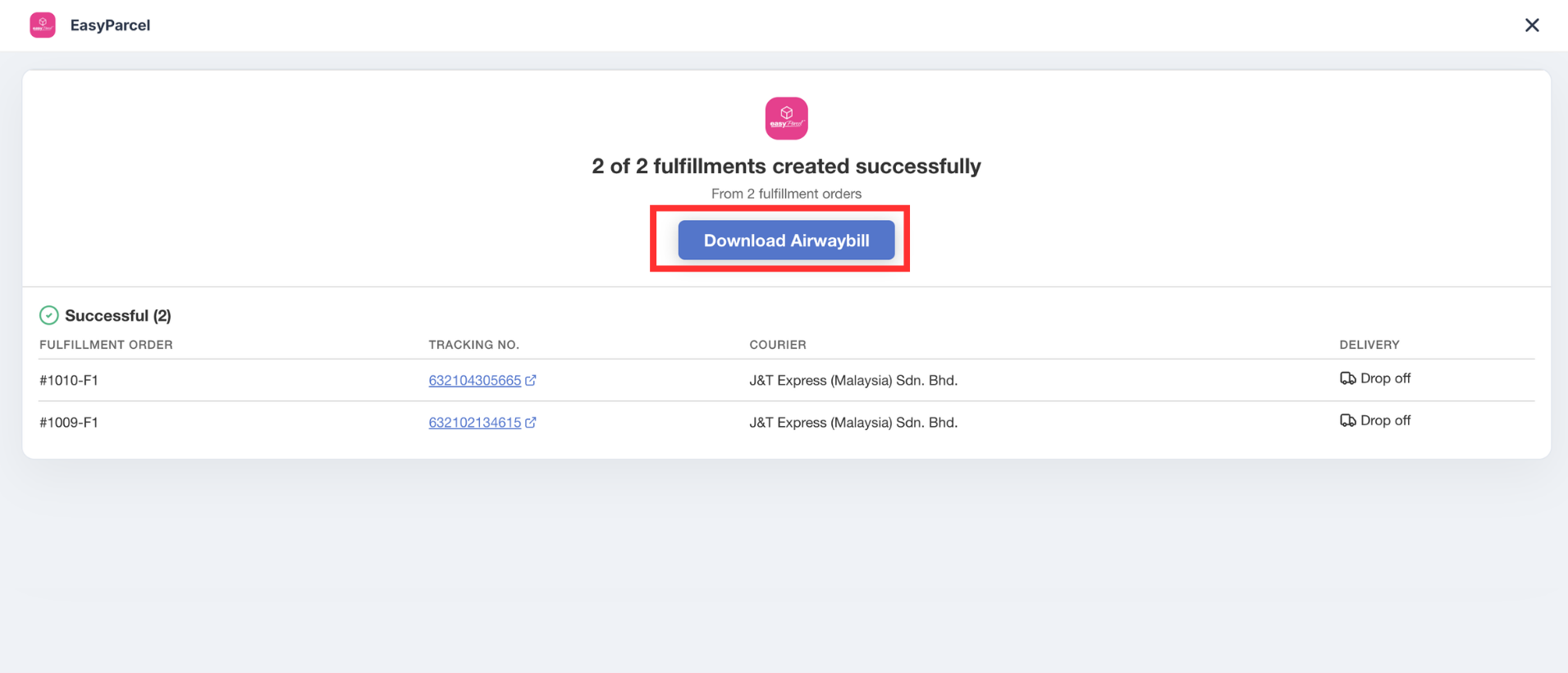
Step 4: Click "Download Airwaybill" to download a single PDF containing the Air Waybills (AWBs) for all successfully fulfilled orders.
How to Reprint an AWB for an Existing Order
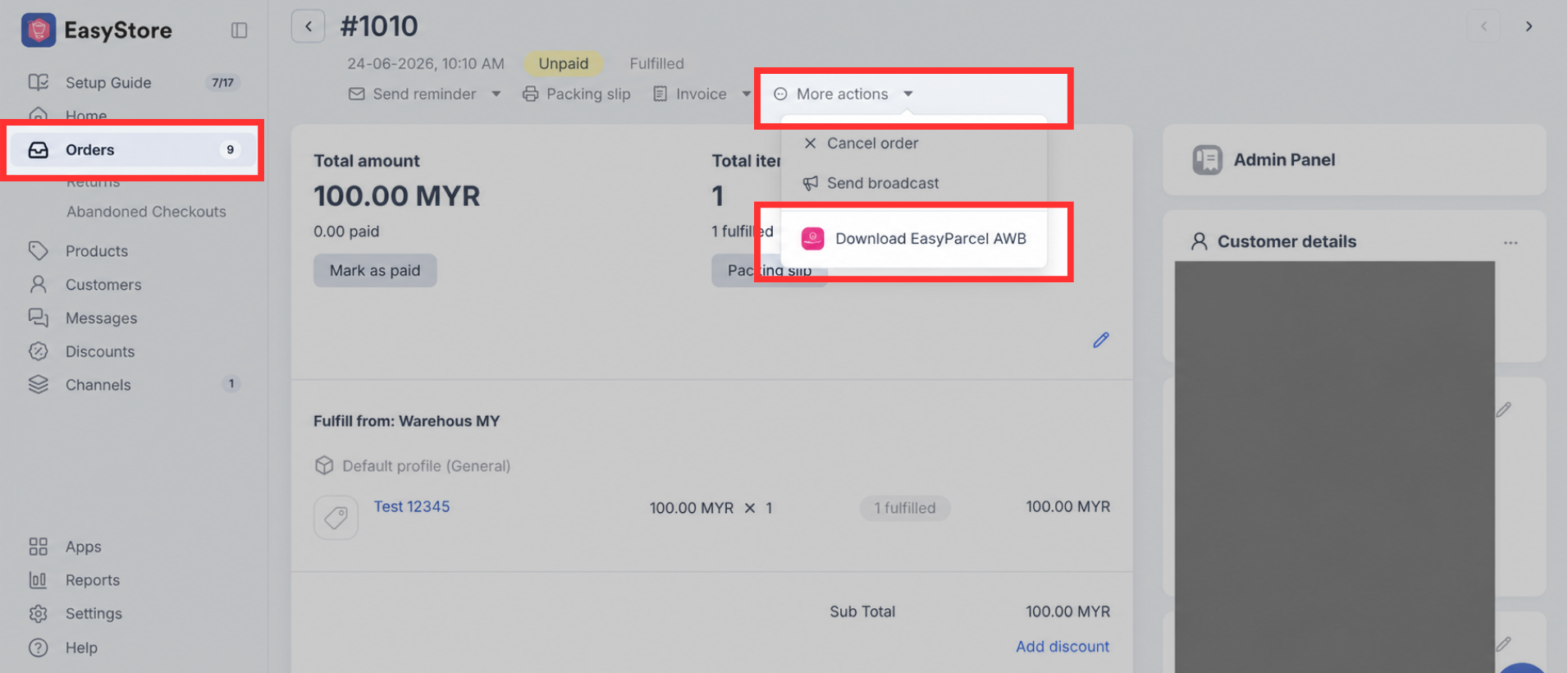
To reprint the AWB for an existing fulfilled order, go to your EasyStore admin dashboard and click "Orders", then open the fulfilled order. Click "More Actions" and select "Download EasyParcel AWB". The AWB page will open within your EasyStore admin, where you can select A4 or 4” × 6” Sticker format, then preview or download the AWB.
How to Reprint an AWB for an Existing Bulk Orders
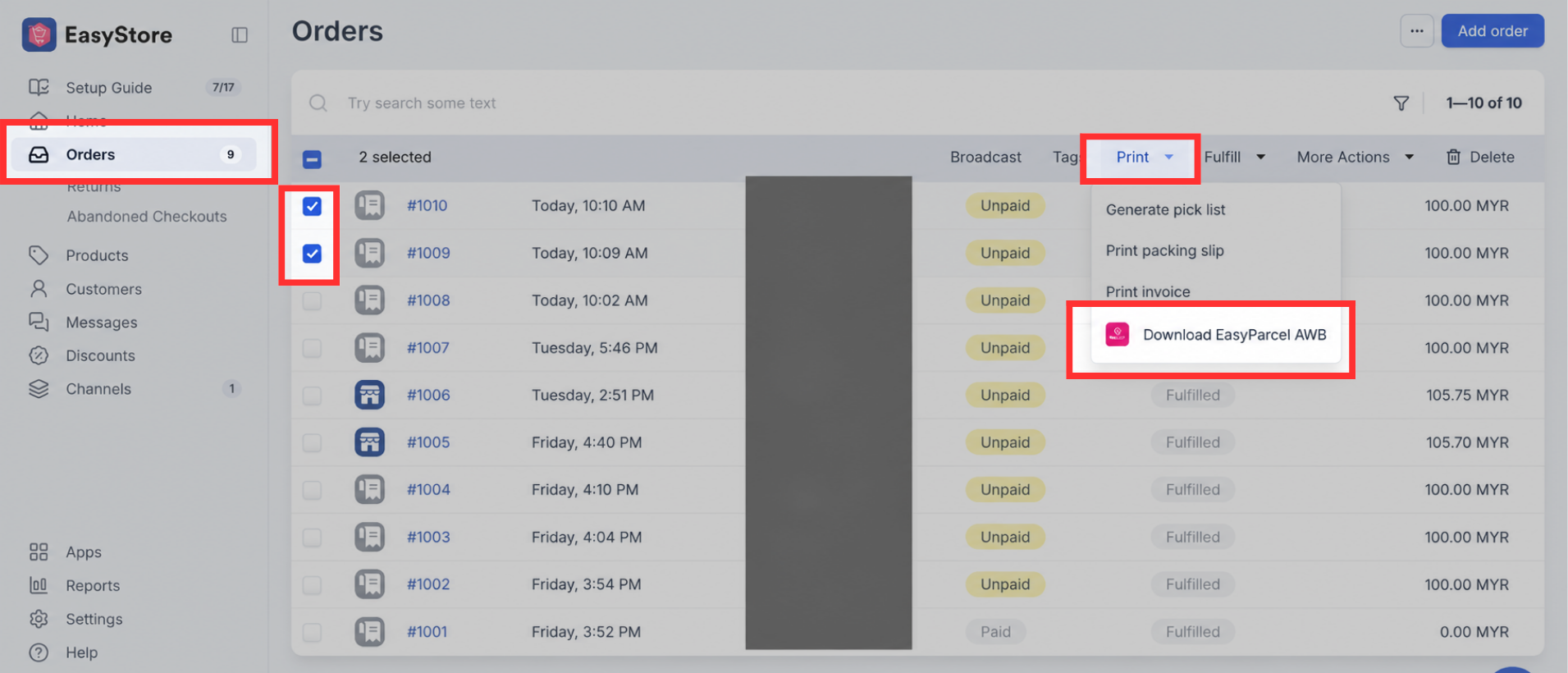
To reprint AWBs for existing fulfilled orders, go to your EasyStore admin dashboard and click "Orders", tick the checkboxes next to the orders you want to reprint, then click "Print" > "Download EasyParcel AWB". The available AWBs will be generated and combined into a single PDF for you to download and print.
How to View Tracking for an Order
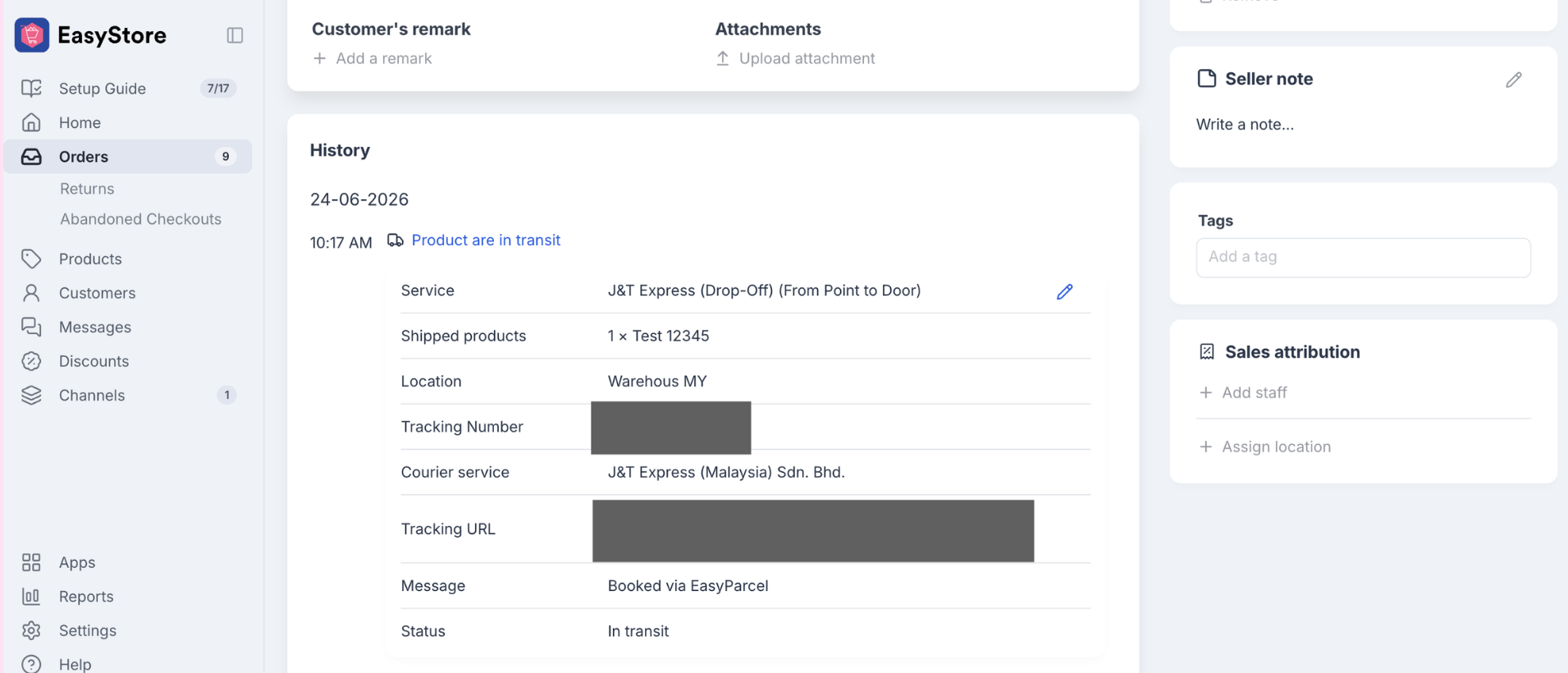
Go to your EasyStore admin dashboard and click "Orders", then open the fulfilled order you want to track. The order timeline will display the current shipment status and tracking number. Click the tracking URL to view the full shipment tracking details on the EasyParcel tracking page.
Note: Once the parcel status is updated to "Delivered", EasyStore will automatically send a notification email to your customer. No further action is required from you.