Setting up Integration
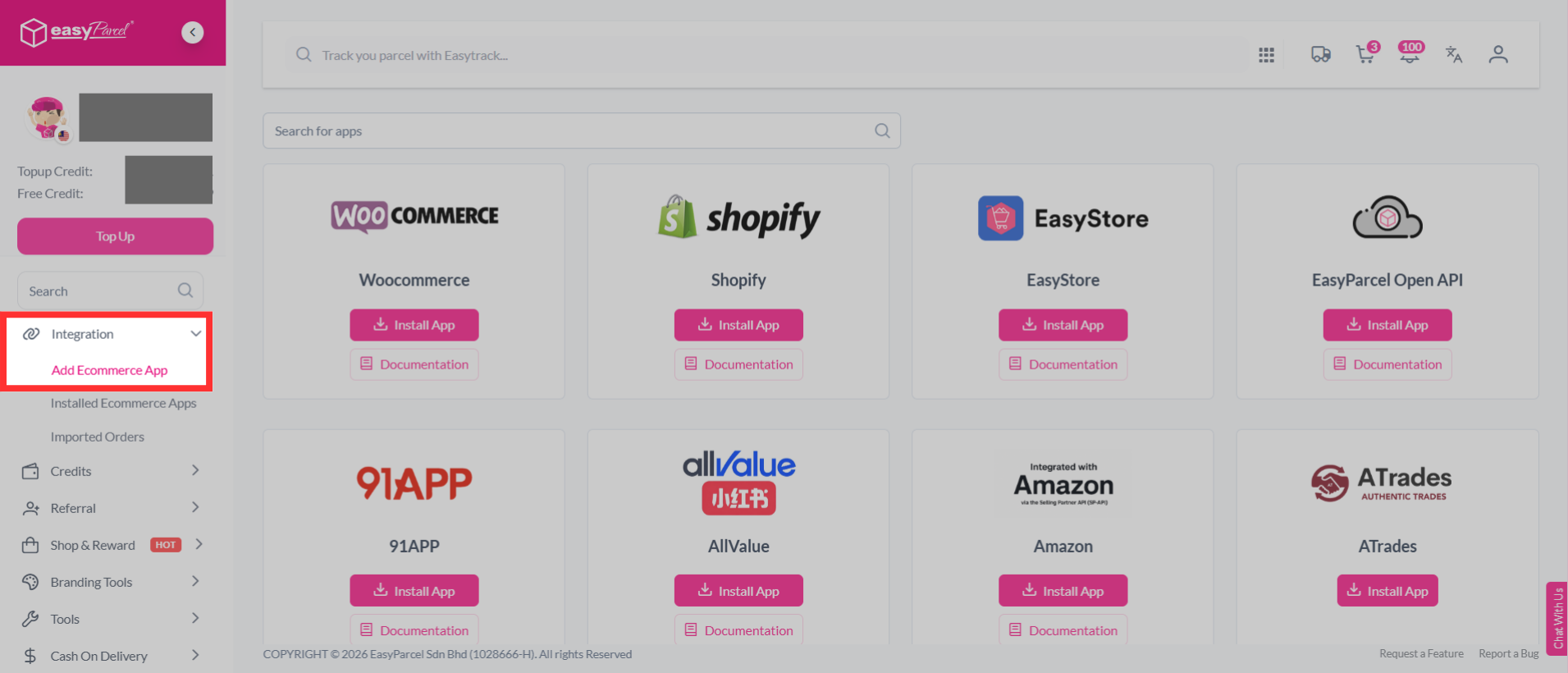
Step 1: From the dashboard, navigate to "Integration" and select it. Then, click "Add Ecommerce App".
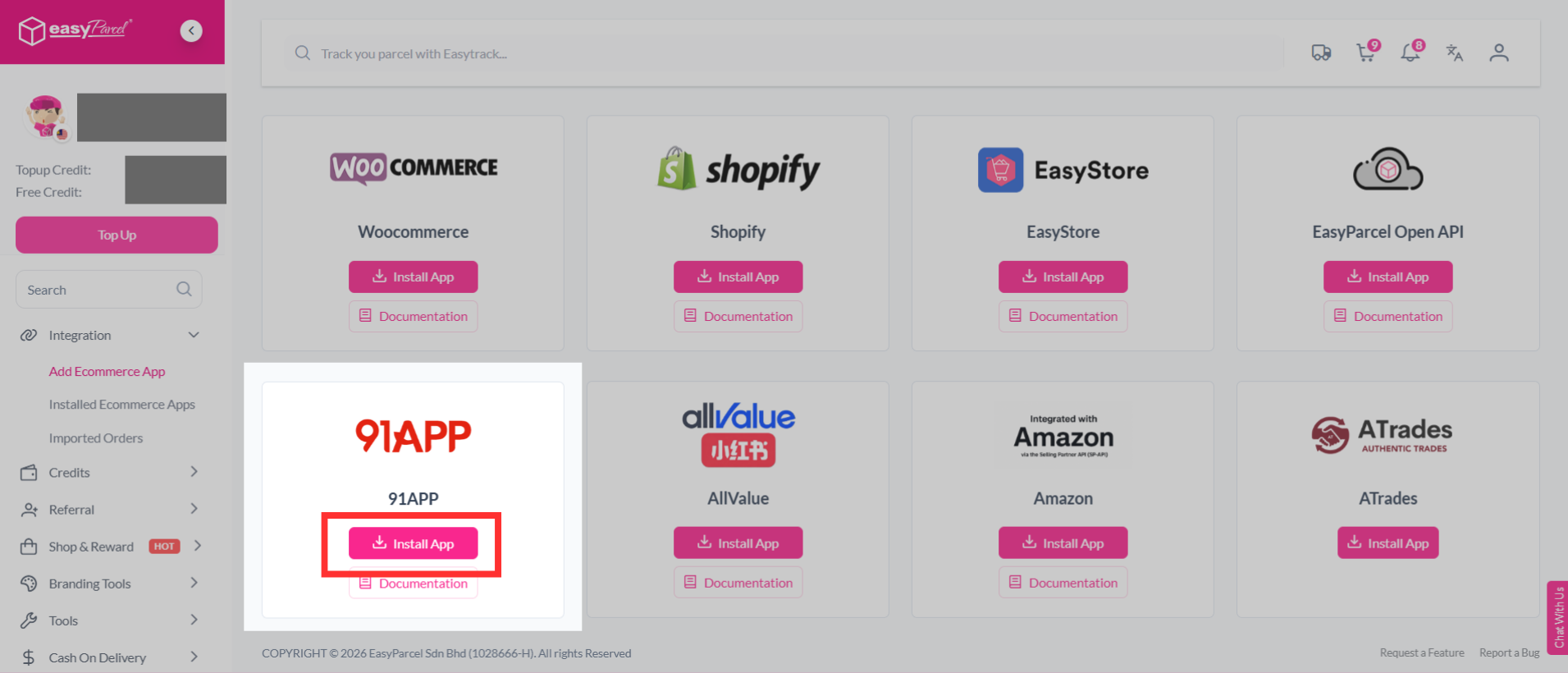
Step 2: Find "91APP" from the list, and click "Install App".
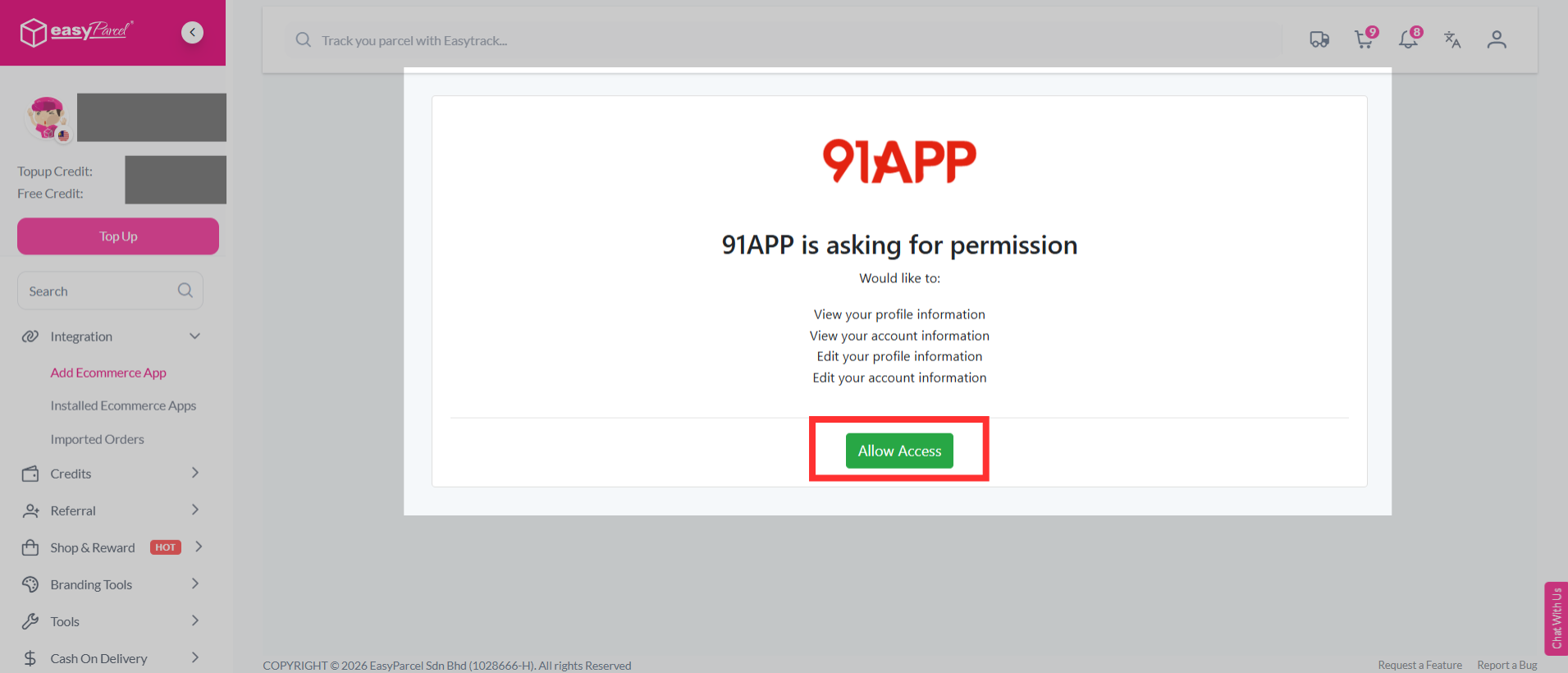
Step 3: 91APP will ask for permission to connect with EasyParcel. Review the requested permissions, then click "Allow Access" to continue.
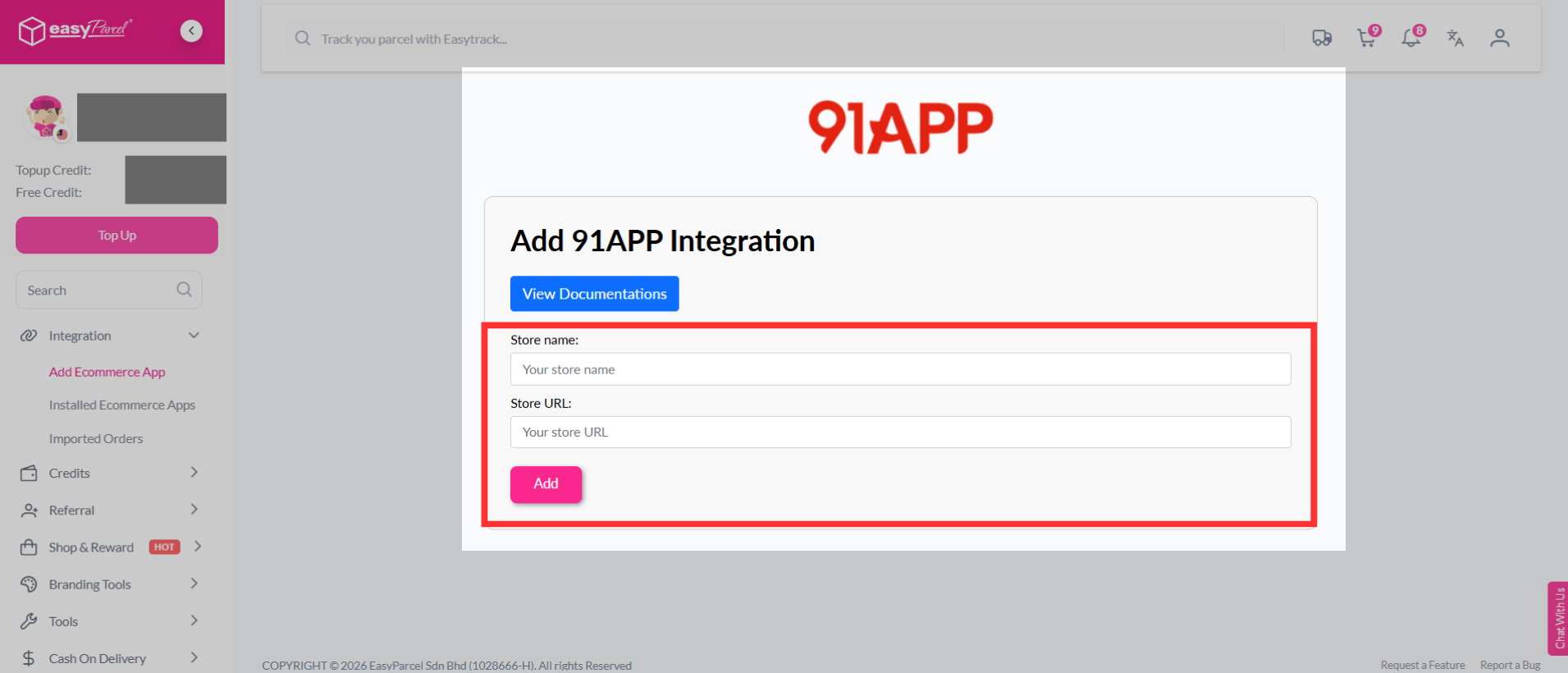
Step 4: Fill in your store’s name and store URL, then click "Add" to continue.
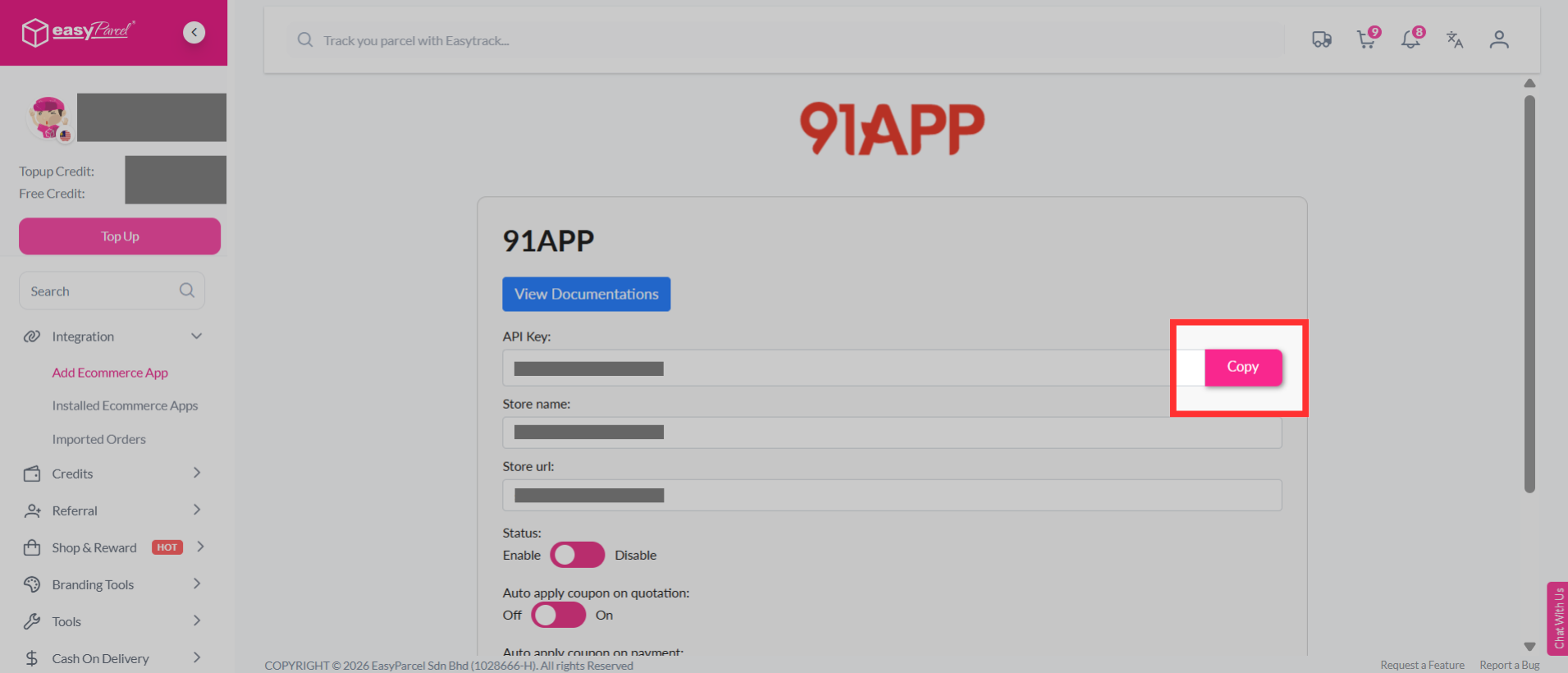
Step 5: EasyParcel will generate a unique Integration ID (API Key) for your store. Copy the Integration ID, as you will need to paste it into the 91APP.
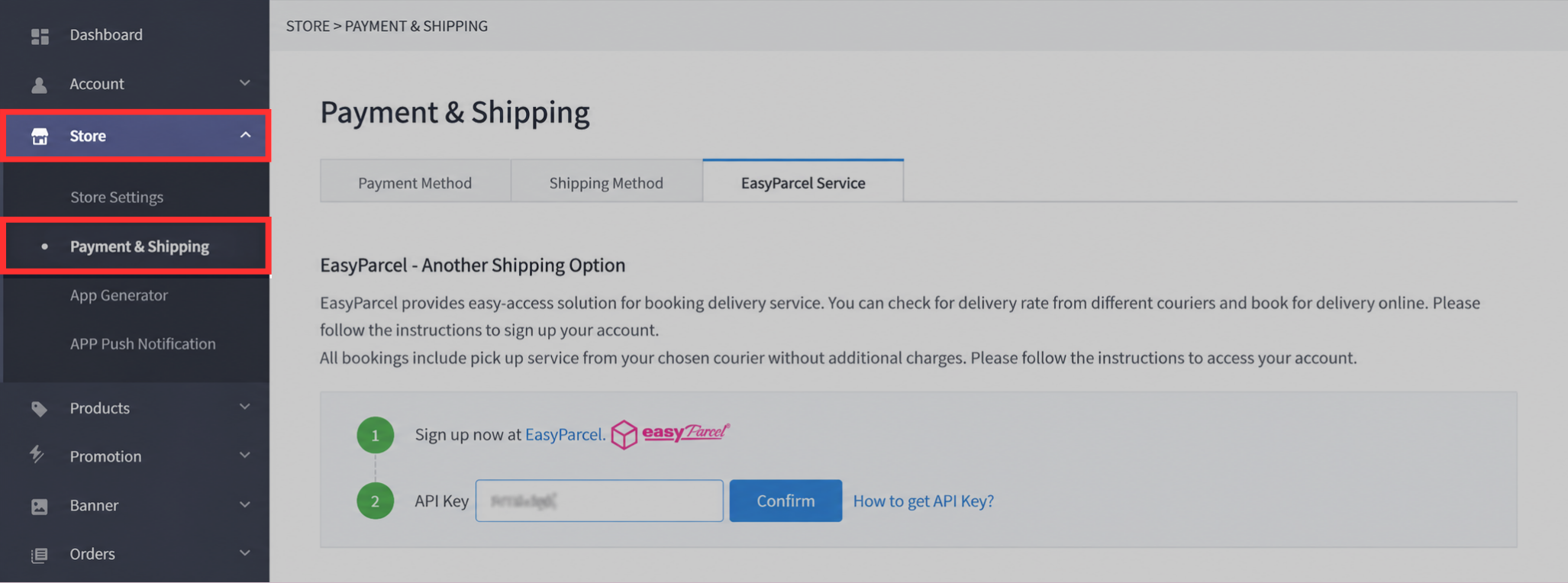
Step 6: Log in to your 91APP account, click "Store", then select "Payment & Shipping".
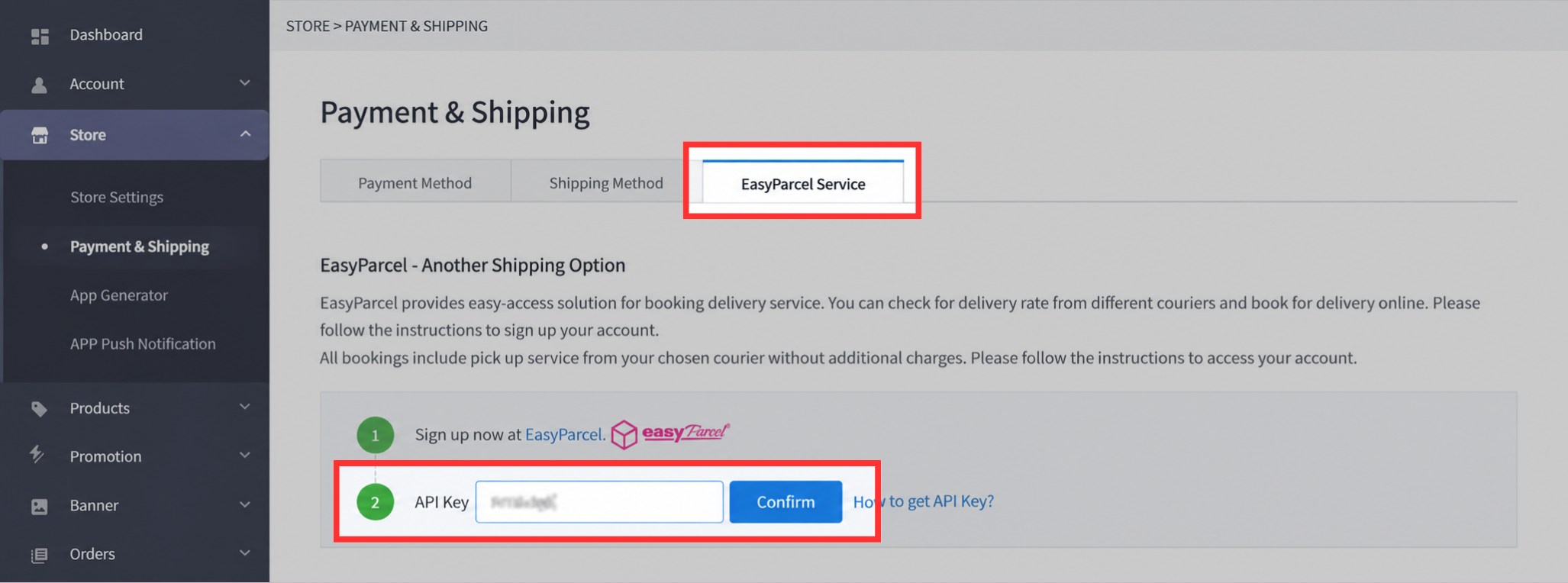
Step 7: Next, click "EasyParcel Service" and key in your API Key/Integration ID.
Note: The API Key copied from EasyParcel will be placed as the API Key here.
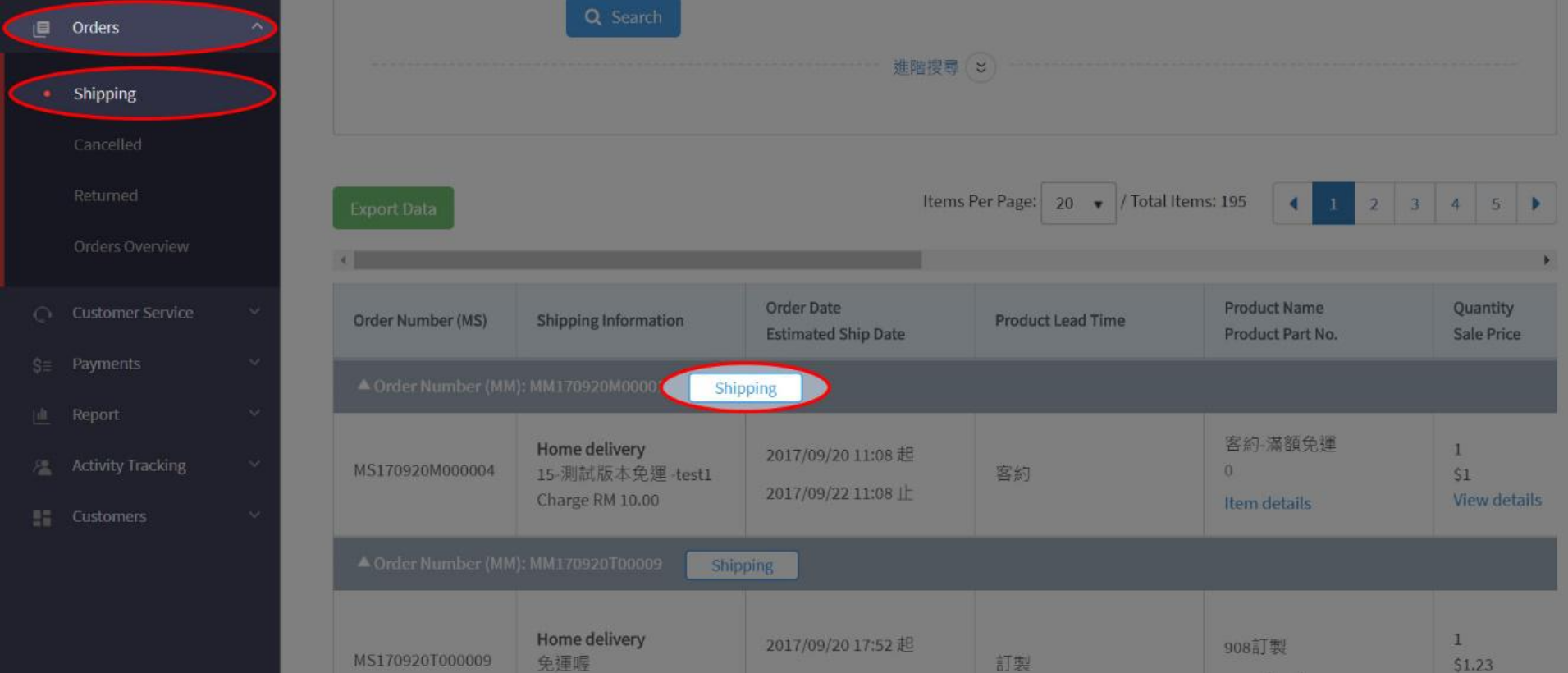
Step 8: Once activated, go to "Orders" → "Shipping". Select the order you want to process, then click "Shipping".
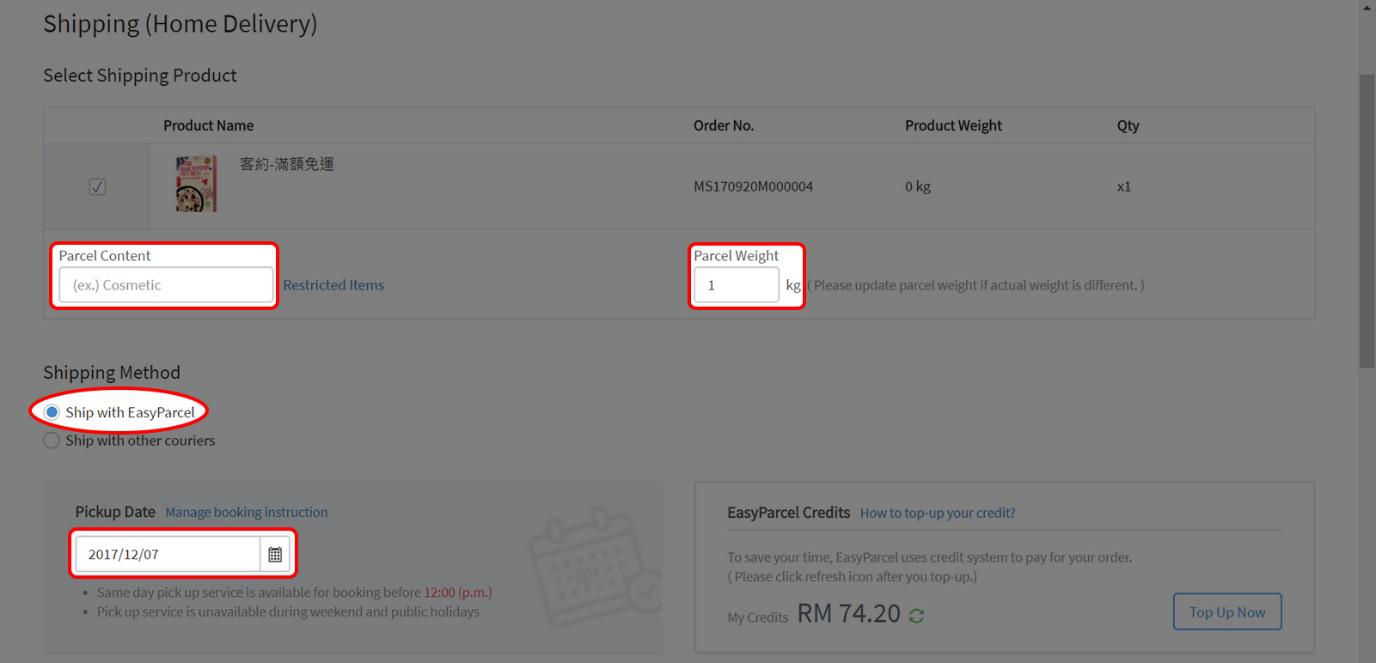
Step 9: Make sure your Shipping Method is set to "Ship with EasyParcel" and that all required shipping details are completed before booking.
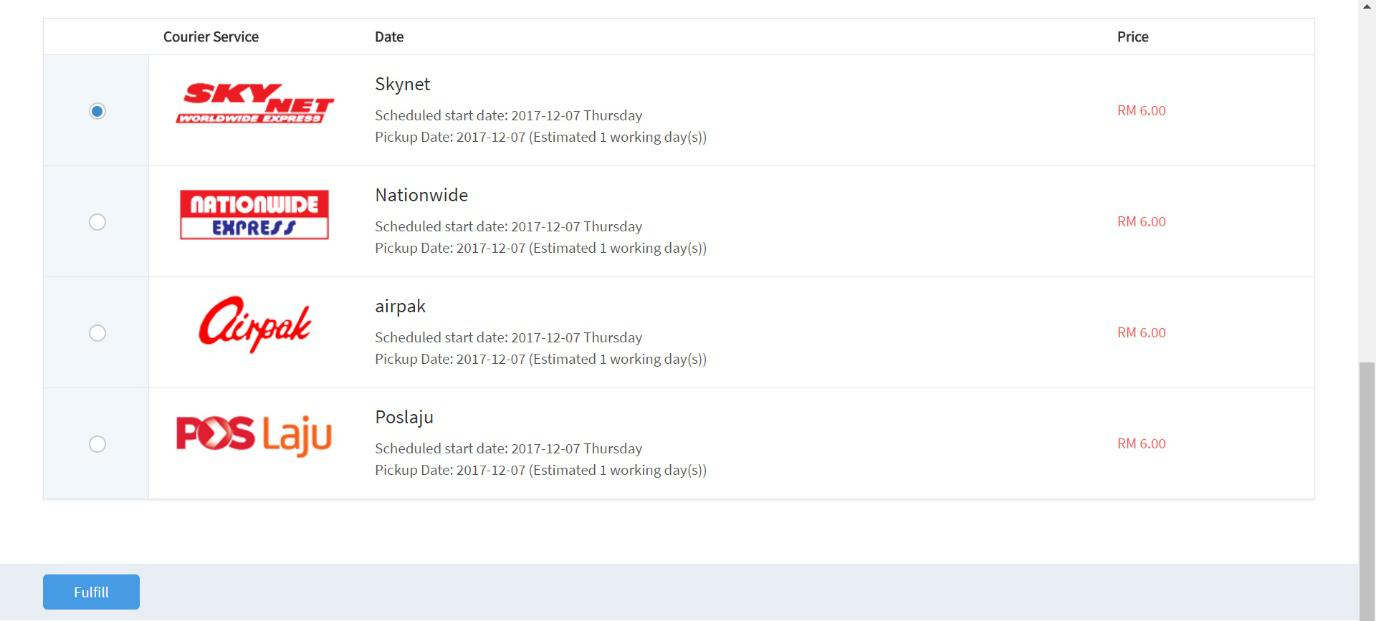
Step 10: A list of available courier options will be displayed. Select your preferred courier, then click "Fulfill".
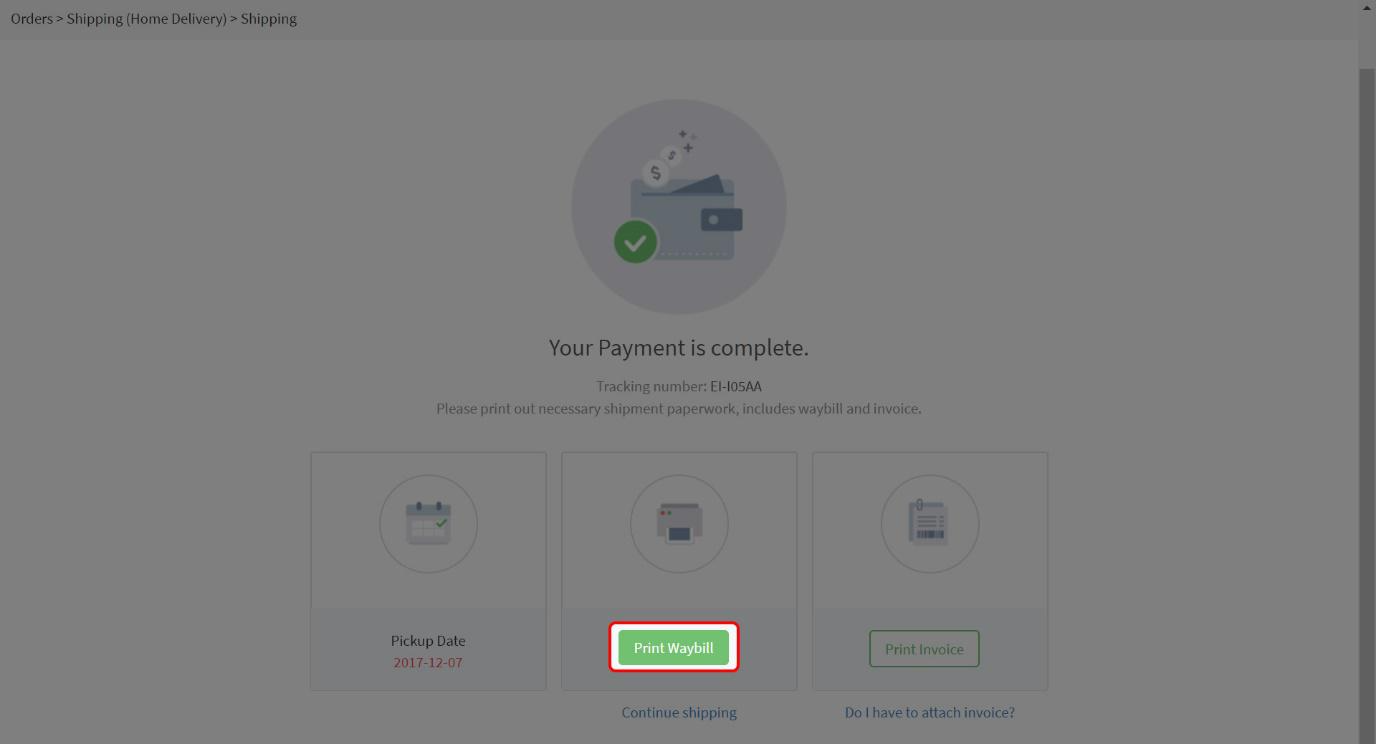
Step 11: Once the booking is successfully completed, click "Print Waybill" to print your air waybill.