
Quick Summary
Integrating PrestoMall with EasyParcel enables automatic order syncing for easier courier booking. Within the EasyParcel dashboard, navigate to "Integrations," select "Add New Store," choose "PrestoMall," and input the API key obtained from your PrestoMall Seller Office (via Member Management > Seller Details) to activate the connection.
We'll Cover:
How to set up integration for PrestoMall?
Step 1: Click “Integrations”.
 Step 2: Click “Add New Store”.
 Step 3: Choose “PrestoMall”.
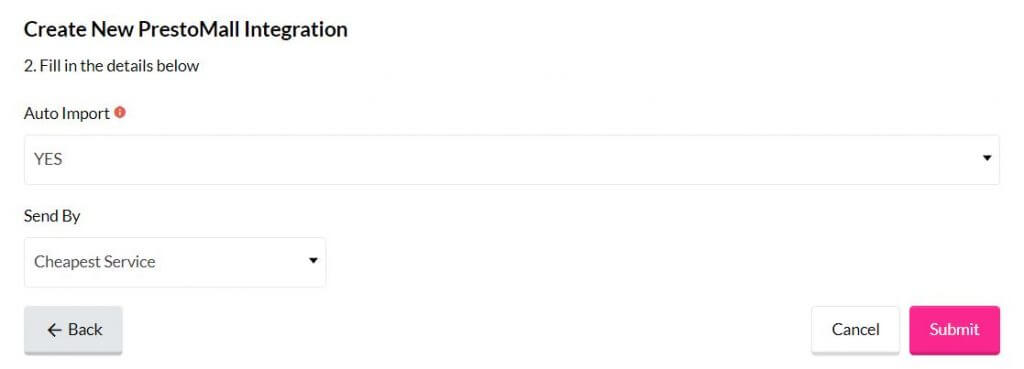
 Step 4: Fill Up Details.

Step 5: “Fill Up Details” and click “Submit” and your integration is completed.
How To obtain PrestoMall API key?
 Step 1: Click on “Seller Office”.
 Step 2: Mouse over to “Member Management” and click on “Seller Details”.
 Step 3: Scroll down and click “Request API Service” and your API key is generated.
How to use the PrestoMall integrated platform?
 Step 6: Click “Your Stores” and make sure your PrestoMall is “Activated”.
 Step 7: Once your order under “ Payment Complate”. Kindly click ” Ready to Ship” button.
 Step 8: You’re able to import your orders from PrestoMall to EasyParcel once your order status under ” Preparing for shipment” .
 Step 9: Click “Action” > “Import” to import your orders. Your PrestoMall order must be in “ Preparing for shipment” status in your store for the “Import Item(s)” function to work. Orders under processing status will be imported to your EasyParcel account automatically every 4 hours.
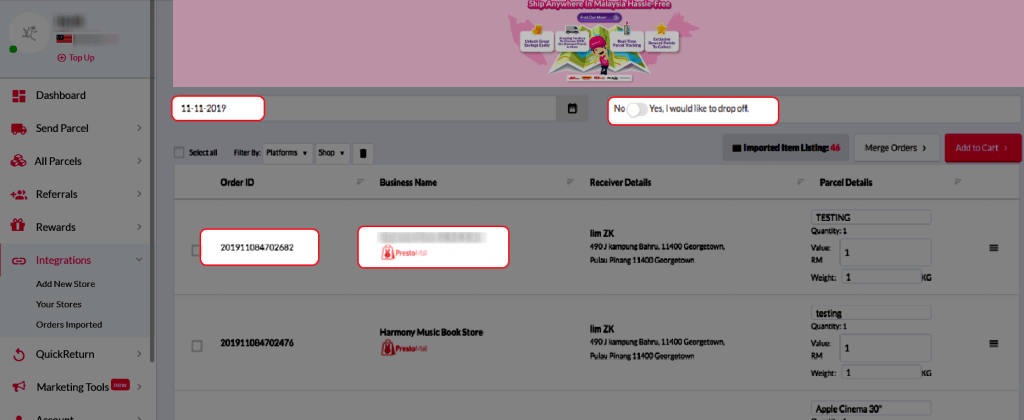 Step 10: To forward your order to payment, select your desired order or all order using the check box given.”Do key in your “collection date” and you may choose to “drop off your parcel at nearest courier points instead of to be picked up by the courier”
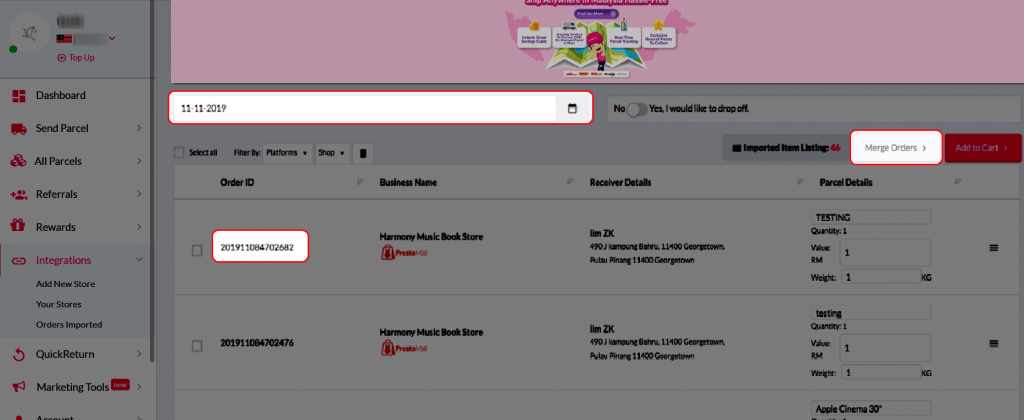 Step 11: lick “Merge Orders” to merge your order if the orders have the same address and you will be directed to payment process.
OR
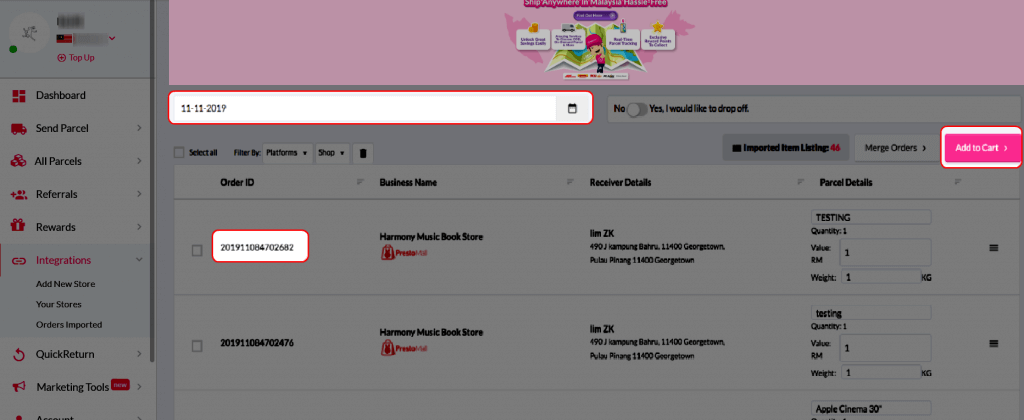 Step 12: Click “Add to Cart” and you will be directed to payment process.